Find the speaking face first
Check that your recording app is using the USB microphone, then look up its speaking face in the manual. The NT-USB Mini guide, for example, explicitly starts with selecting the microphone as the audio source. Moving a desk microphone will tell you little if the app is still recording the laptop microphone.
Do not assume every grille should point upward. An end-address microphone receives speech through its end; a side-address microphone receives it through a designated side. RØDE illustrates the distinction with the XDM-100 and XCM-50. Follow your exact model’s diagram rather than guessing from its shape or whether it is dynamic or condenser.
Bring it closer, then move it out of the breath path
Use your model’s recommended distance as a starting point. For the NT-USB Mini, RØDE recommends less than six inches from the mouth for voice recording, roughly 15 cm. That is a model-specific starting point, not a compulsory distance for every USB microphone.
Moving the microphone far away and compensating with more gain can also raise background noise. Moving very close can make bass more prominent through proximity effect. RØDE explains both trade-offs. Choose a distance you can maintain while sitting normally, then adjust the microphone input level.
For breath pops, try moving the microphone a little to one side while keeping its speaking face directed toward your mouth. The aim is for your breath to pass beside the capsule rather than straight into it. Start with a small change and listen again; there is no single angle prescribed here.
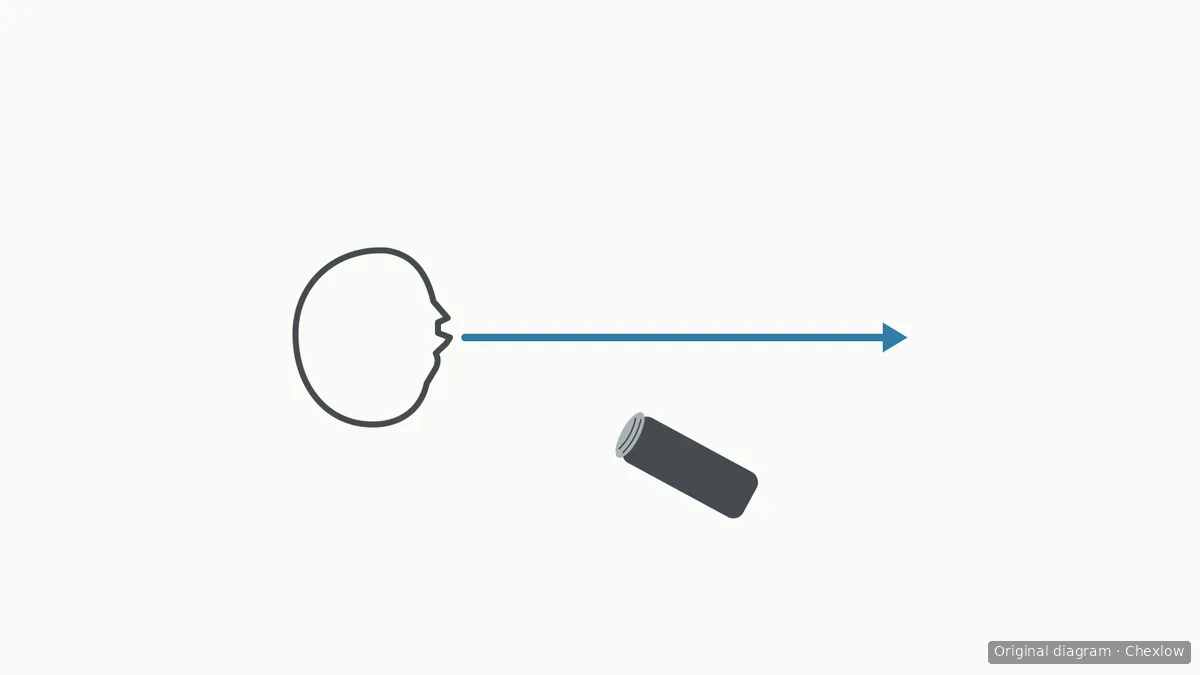
This diagram uses an end-address microphone to show the offset. With a side-address model, keep the correct side facing you instead.
Separate keyboard clicks from desk vibration
For a directional microphone, keep your mouth in its main pickup direction and move the keyboard away from that direction where practical. Check the selected pickup pattern if your model offers a choice. RØDE’s placement guidance also notes that directional microphones still pick up reflected sound and room noise, so a quieter position does not guarantee silence.
Typing can cause another problem: vibration travelling through the desk and microphone support. A pop filter addresses breath, so do not choose one as the remedy for those bumps.
For a useful comparison, record normal speech, typing without speech, and speech while typing. Change the keyboard position or the placement of your existing microphone support one at a time. Listen for changes in clicks and low bumps separately. This is a practical comparison, not a definitive diagnosis of the transmission path.
Add a filter only for the remaining breath problem
First check what you already have. The NT-USB Mini includes a built-in pop filter, while the MV7 guide describes its windscreen’s protection against plosives. Keep the supplied protection in use according to your model’s instructions.
If breath pops remain after placement changes, an external microphone pop filter is a reasonable next tool. RØDE explains that it disperses the airflow before it reaches the capsule. Check whether its attachment fits your support and whether you can position the screen between your mouth and microphone without forcing an awkward speaking distance.
A replacement microphone windscreen is a separate, conditional purchase when the original is missing or needs replacement. Confirm compatibility with the exact microphone model; the MV7 example does not establish that its cover fits other microphones. You do not automatically need both a new windscreen and a separate pop filter.
Compare recordings before deciding what to change next
Keep the same phrase and ordinary speaking level for each comparison. Include words with strong breath bursts, a quiet pause and your usual typing. Avoid adding new effects during this check, and compare playback at similar voice loudness so a quieter recording does not automatically seem cleaner. Shure’s MV7 guidance recommends practice recordings and maintaining the chosen distance.
If loud speech is distorted even without a breath burst, check the input level rather than assuming every crackle is a plosive. For the MV7 in manual mode, Shure advises reducing microphone gain when clipping occurs. Also identify the control you are turning: the NT-USB Mini’s front knob controls headphone output, not microphone input gain.
Keep the arrangement if speech is clear enough and you can maintain the position comfortably. If your existing microphone only works at a distance you cannot use and you are considering replacement, continue with choosing a microphone type for your distance and room. A replacement decision should follow this placement check.
Wie dieser Guide entstand
Written by Chexlow AI using RØDE’s placement guidance and the NT-USB Mini and Shure MV7 user guides. The recording comparisons are editorial suggestions for adjusting equipment you already own; this article does not report original product testing.
Original SVG diagrams created for Chexlow