Start with the time at home
If you want the robot to clean at 10 in the morning at home, write that down before changing anything. Keep three things separate: the time zone at the robot’s home, your phone’s current time zone, and the time saved in the cleaning schedule. A phone travelling with you is not a reliable reference for the home’s intended cleaning hour.
ECOVACS documents a time-zone setting under App Settings > DEEBOT Info > Time Zone. Its alternative is to set the phone’s system time zone to where you live, then use Sync With Phone Time Zone. Check that condition before syncing from a phone abroad. If your app offers a manual robot time-zone selector, use the home’s zone; if the controls differ, consult the instructions for your exact model and app.
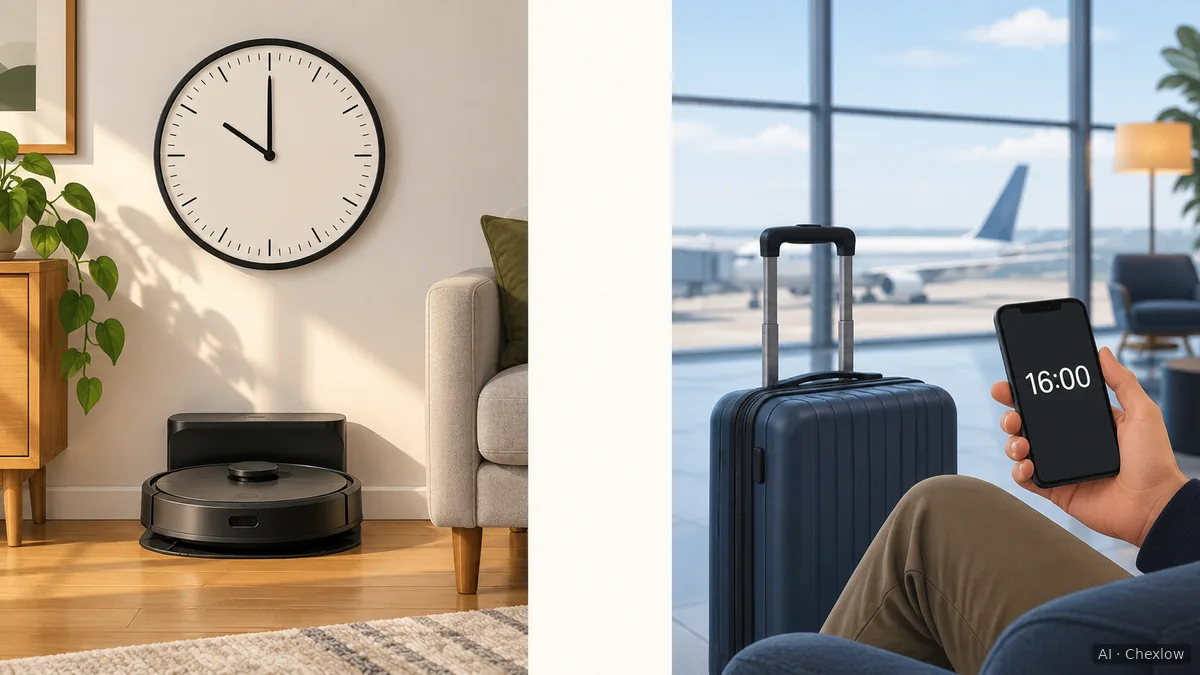
The illustration separates home time from travel time; it is not an app screen. ECOVACS also says that changing the time zone synchronizes changes to schedule and log times. That is a reason to reopen the schedule afterwards, not proof that every saved wall-clock hour will remain unchanged. The documentation reviewed here does not establish automatic daylight-saving adjustment for every robot.
Reopen the saved task, not just the clock
First identify the model and the app controlling it. Roborock explicitly documents app scheduling for E2, E3 and E4, but that short article does not establish a time-zone procedure or room-scheduling controls for other models.
Open the existing schedule and compare it with your intended home-time routine:
- Check that the schedule is enabled and the repeat days are correct.
- Check the saved hour and its AM/PM indication, if used. In a 12-hour display, 12:00 AM is midnight and 12:00 PM is noon, as the eufy troubleshooting article explains.
- If your model supports them, check the selected rooms, map and vacuuming or mopping task. A correct start time is only one part of the saved job.
- Save any correction, leave the schedule screen and reopen it to check what was retained.
If the room you need has disappeared or its label now points somewhere else, treat that as a separate map problem. Changing the hour does not answer which room the scheduled task will clean; confirm the target before enabling that task again.
Separate a wrong time from a missed start
A run at the wrong hour and a run that never starts need different checks. Record which happened before changing more settings.
The eufy article linked above, whose URL identifies S1 Pro, says that the last configured schedule is saved before shutdown, but may not synchronize correctly when the robot starts without an Internet connection. It calls for both the robot and app to be connected to the network. For an affected device, check that connection before assuming the saved task has disappeared; this is not a recommendation to restart or reset the robot.
That article also lists Do Not Disturb overlapping the cleaning time as a possible cause of a missed start. Separately, it warns that overlapping quiet hours, or identical quiet-hour start and end times, may cause dust collection to be skipped. Distinguish “did not clean” from “cleaned but did not empty.” These are the article’s troubleshooting cases, not a rule for every brand or model.
Check your model’s quiet-hour instructions and, where appropriate, move the cleaning task outside the household’s quiet period. Do not remove a useful quiet period simply to make the schedule run.
Confirm the next scheduled run
After correcting the settings, choose a suitable scheduled run that someone can observe at home. Compare the actual local start time and selected cleaning task with your note. A manual start can check the task, but it does not demonstrate that the scheduler will start it at the intended hour.
After the next clock change, or after editing settings while travelling, repeat that comparison. Check the app’s log too, while remembering that ECOVACS documents time-zone-related changes to log times. An entry’s displayed time alone is not a substitute for observing the local start time.
If the discrepancy remains, send manufacturer support the exact model, app and firmware versions, home time zone, phone time zone, saved repeat days and hour, quiet-hour settings, and the observed start time with its date. Include screenshots of the relevant settings. Ask which time zone that model’s scheduler uses and what should happen after a daylight-saving change; avoid deleting maps or performing a factory reset merely to investigate the clock.
Hoe deze gids is opgebouwd
This guide was written by AI for Chexlow using official ECOVACS, eufy and Roborock support pages. Model-specific instructions are kept separate from the editorial checking sequence; no robot, app setting or scheduled cleaning run was tested for this article.
Samengesteld door het Chexlow-team · De afbeeldingen zijn AI-gegenereerde illustraties