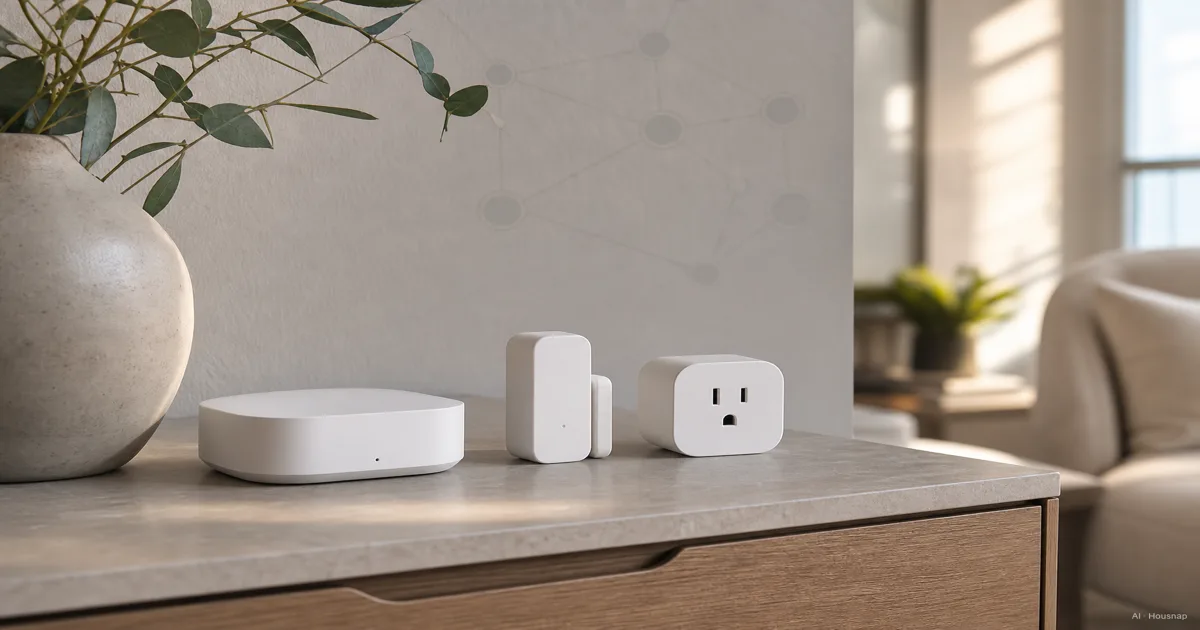
Choose the app and one useful job
Start with something specific, such as switching a table lamp from your phone. Write down the app you want to use and the exact plug you are considering. Then check that the platform supports that device type and the functions you need: platforms adopt Matter categories at different times, as Google explains.
If voice control is the unresolved choice, work through which smart-speaker ecosystem fits your household before buying a hub. For this first setup, choose one app in which to create and check your routine. That is a way to keep the setup manageable, not a Matter restriction.
Read Matter and Thread as two separate specifications
Matter describes how compatible devices communicate; Thread is one network they can use. Matter also runs over Wi-Fi and Ethernet, so the Matter logo alone does not tell you how a plug connects. Check both specifications on the exact product. CSA explains the supported connections.
Thread is a low-power mesh network. A Thread border router connects that network to the rest of your home network; it is a different function from controlling Matter accessories. That routing function can be built into another device, rather than requiring a separate box. Thread Group explains the distinction.
Check the hub you own before adding one
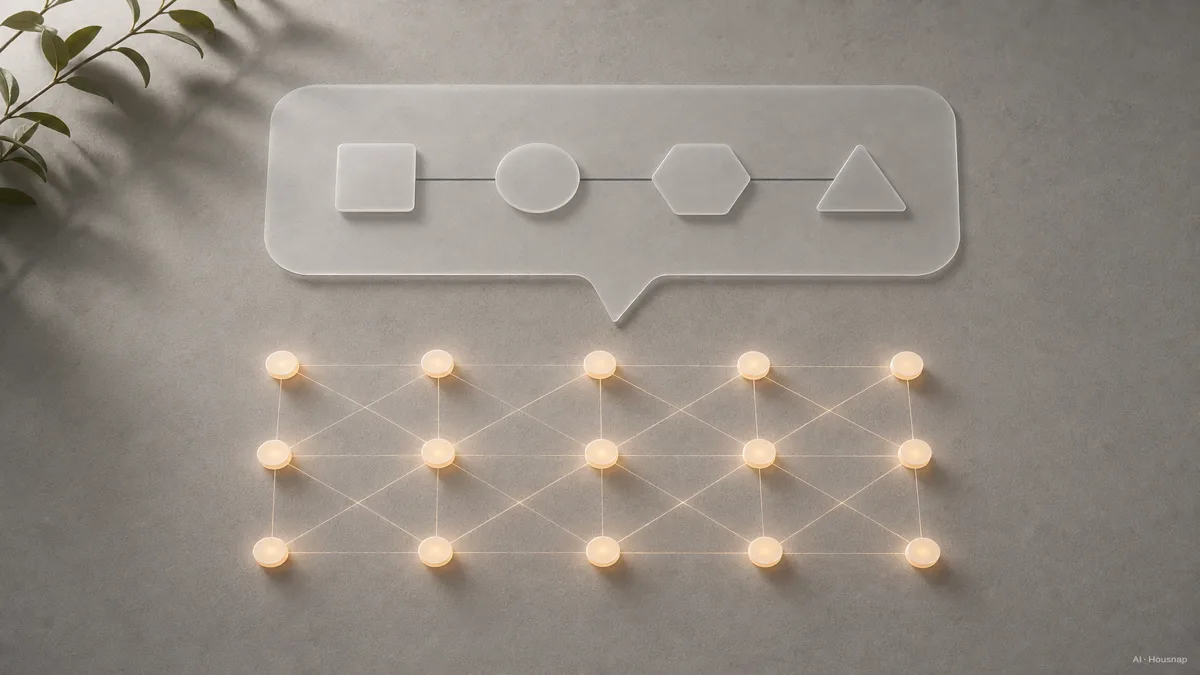
Look up the model and generation, not just the product family. The illustration shows where the function may be hidden, not a compatibility list.
- Apple Home. Apple's Thread list includes HomePod mini, HomePod (2nd generation), Apple TV 4K (2nd generation), and Apple TV 4K (3rd generation) Wi-Fi + Ethernet. Compatible Thread-enabled iPhones can also pair accessories directly on iOS 18 or later, but that does not remove the separate requirements for automation and remote use. Check Apple's requirements.
- Google Home. Nest Mini can serve Matter over Wi-Fi; Nest Hub (2nd generation) also supports Thread. A Matter hub is therefore not automatically a Thread border router. See Google's hub list.
- Another platform or hub. Check its documentation for both Matter controller and Thread border-router functions, plus compatibility with your chosen app. Do not infer them from the word “hub.”
If the required functions are already available and configured, reuse them. If Thread connectivity is missing, compare a compatible border router here, or choose a Wi-Fi plug in the next step.
Choose a plug that fits both the network and the socket
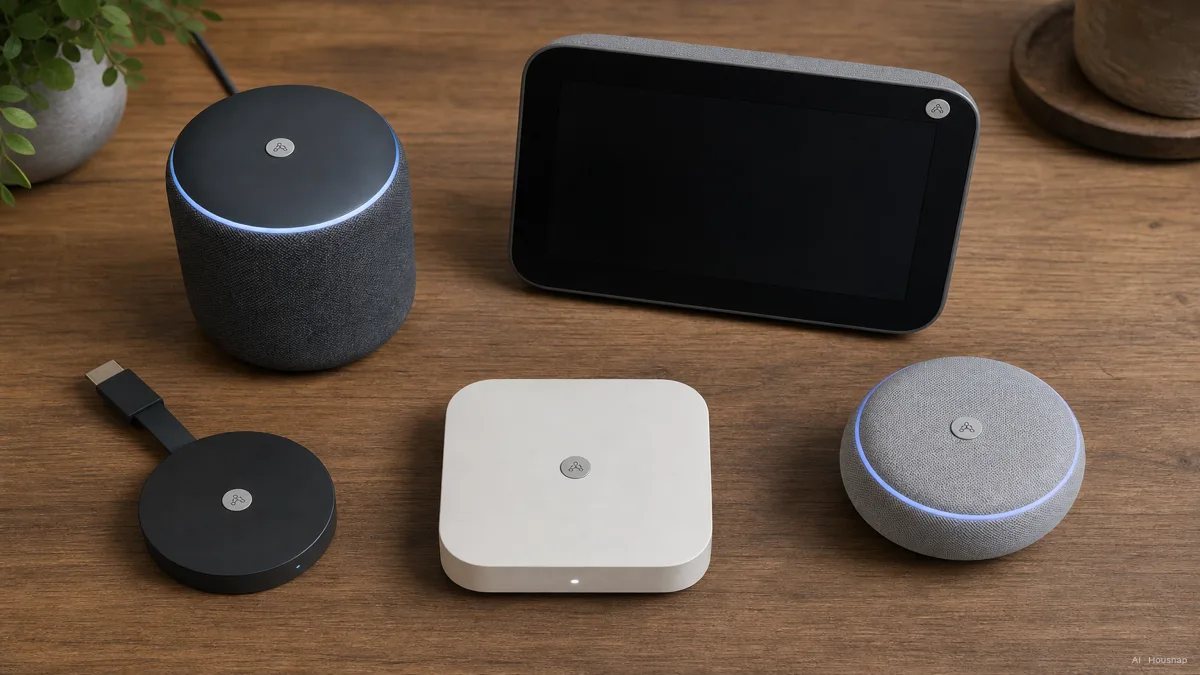
A plug is a useful first candidate when your goal is simple on/off control of an existing lamp. Choose the connection that fits your setup rather than assuming Thread is compulsory.
- Wi-Fi route. Check the required Wi-Fi band and your platform's hub requirements. Tapo P125M is a concrete Matter-over-Wi-Fi example: its specification says 2.4 GHz Wi-Fi, with Bluetooth used for setup. That is not a Thread connection. TP-Link specifications.
- Thread route. The Matter version of Eve Energy requires Matter controller and Thread border-router functionality. It can also relay Thread traffic; that does not make the plug a border router. Eve's requirements.
Before ordering, check the regional socket, voltage and permitted load for the appliance you intend to connect. Eve lists different regional specifications, so a familiar product name is not enough. Use the exact model's limits, not a rating copied from another country's version.
Treat these as examples of the two connection paths, not interchangeable regional purchase recommendations. For the first trial, choose a lamp and plug combination permitted by their instructions, then check whether the lamp resumes operation when power is restored.
Add one device, then decide what to expand
- Pair. Follow the manufacturer's pairing-mode instructions, then use your home app's Matter setup flow. Google's instructions cover scanning the code and assigning a room and name. Google setup guide.
- Check. Try on/off control and one routine before buying several more devices. Test remote access separately: Google distinguishes local home control from remote commands that pass through the internet and its hub.
- Share when needed. Use the first app's Matter sharing function to add another platform. Google can generate a temporary pairing code; adding another app is a separate operation from initial setup.
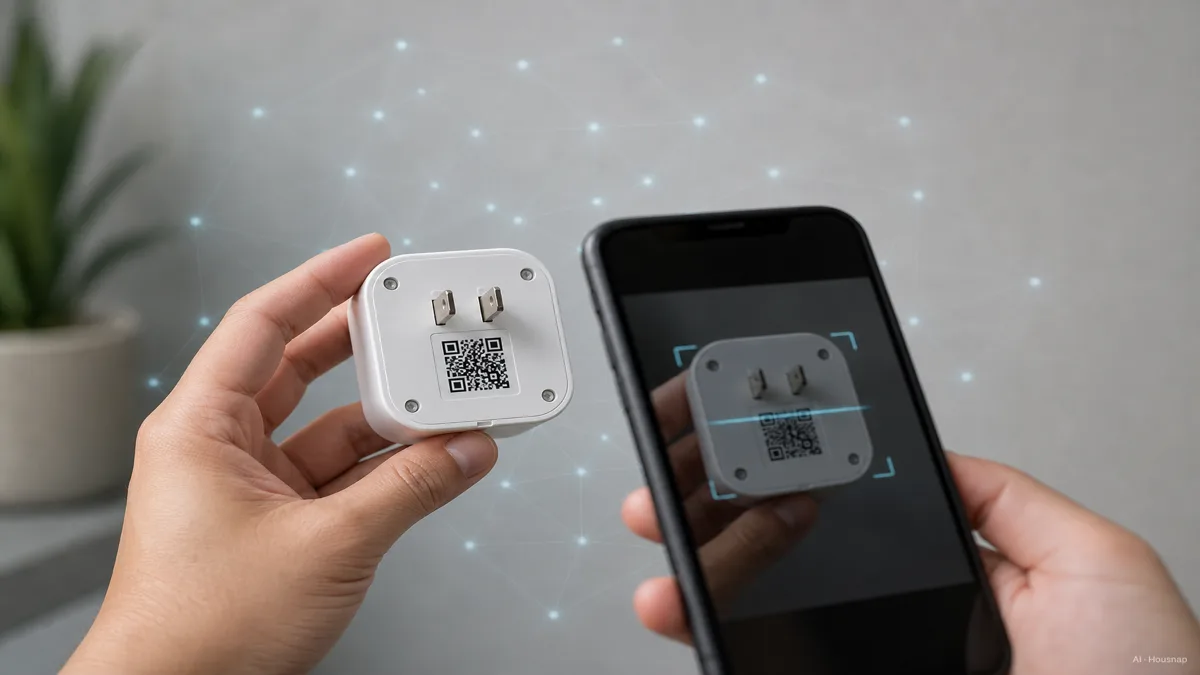
If setup stalls, check the platform's network requirements before buying more hardware. Google specifies IPv6 on the home network. Having several border routers is not, by itself, proof of a fault: shared Thread credentials allow one mesh, while separate meshes can still communicate through the home network. Thread Group explains both cases.
Already own older accessories? Check whether their maker supports them through a Matter bridge before replacing them. CSA describes bridging, but that is not a promise that every old device will be supported.
Como este guia foi construído
AI wrote this guide for Chexlow using documentation from CSA, Thread Group, Apple, Google, Eve and TP-Link. It focuses on choosing a first Matter plug and identifying the network functions it needs. The small first setup is an editorial recommendation, not a product test or a guarantee of compatibility.
Editado pela equipe Chexlow · As imagens são ilustrações geradas por IA