Choose the camera in the app you will use
Open the camera settings in the app for your next call. Select the external webcam by its displayed device name, rather than assuming that connecting it changed every app’s choice.
- Google Meet on a computer. Open Settings > Video and choose the webcam under Camera. A working camera shows a preview beside the video settings. Google’s camera-selection instructions
- FaceTime on Mac. Open the Video menu in the menu bar and select the external camera. For other Mac apps, look in their menus or settings, or consult the developer’s instructions. Apple’s external-camera guide
To confirm which lens supplies the picture, briefly move a hand in front of the external webcam and watch the preview. Repeat the selection check in each app you actually use.
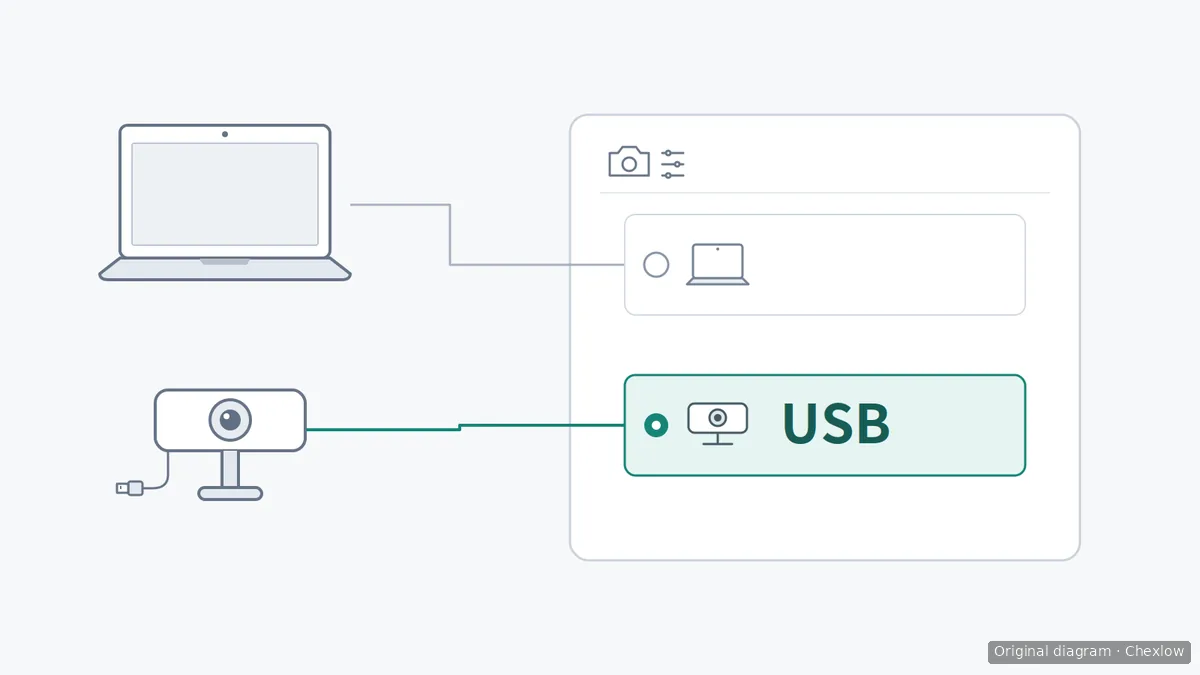
The lines connect each device icon to its matching choice in this app; they are not USB wiring. The empty circle marks the unselected built-in camera, while the filled circle and highlighted row mark the selected external webcam. This selection does not represent an operating-system-wide default, camera permission approval or a guarantee of compatibility.
This diagram explains camera selection; it is not a screenshot of a particular app.
Give the app camera access
Permission and camera selection answer different questions: whether an app can use a camera, and which camera it uses. If the external camera cannot produce a preview, check the permission layer next.
Windows. Open Settings > Privacy & security > Camera and turn on Camera access. For Microsoft Store apps, enable Let apps access your camera and the relevant listed app. For desktop software and browsers, check Let desktop apps access your camera. Windows does not provide individual desktop-app switches under that control, so an app missing from the individual list is not by itself evidence of a faulty installation. If Camera access cannot be changed, ask the device administrator. Microsoft’s camera-permission guide
Mac. For a third-party app you installed, open System Settings > Privacy & Security > Camera and enable its access. These apps appear in the list after requesting camera access; if the third-party app is absent, open its camera feature and check for a permission request before revisiting the list. FaceTime, Photo Booth and other apps included with Mac have camera access automatically and do not need a separate permission grant, so you do not need to find a switch for them in this list. Apple’s camera-access guide
For a browser call, apply the operating-system permission guidance appropriate to that browser, then continue to the website permission below.
Check website permission for browser calls
A browser call adds another place to check. Microsoft’s Teams guidance specifically distinguishes browser camera access from settings managed by an IT administrator.
- Chrome. Open Settings > Privacy and security > Site settings > Camera. Check the camera dropdown, allow sites to ask for access, and grant camera access to the meeting site you intend to use.
- Safari. Open Settings > Websites > Camera and check access for the meeting website.
- Managed computer. If the relevant controls are locked or managed, ask IT to check the policy instead of repeatedly changing the meeting app.
These paths are documented in Microsoft’s browser troubleshooting instructions and Apple’s Safari camera guidance. Return to the meeting’s camera selector afterward and check the external webcam preview again.
If the camera is still missing or blank
Close other apps that may be using the camera, disconnect and reconnect the external webcam, then restart the computer if necessary. These are steps in Microsoft’s Teams camera troubleshooting guide, which also directs possible hardware problems to the device manufacturer.
Use the result to choose the next action:
- The preview still shows the laptop camera. Return to the app’s camera selector and confirm the selected device.
- The webcam works in one app but not another. Record which app works and check the failing app’s selection and permissions. That comparison is useful information for support, not proof that every part of the setup is healthy.
- The webcam remains unavailable. Give support the webcam model, operating system, app name and the checks you completed. A blank preview alone is not enough to conclude that you need a new camera.
Once the correct camera appears, keep resolution separate from device selection. In Meet, send resolution controls the image others receive; receive resolution controls the images you see from them. Changing receive resolution will not select your USB webcam.
If manufacturer support establishes that replacement is needed, use the 1080p versus 4K webcam guide to choose the replacement’s capabilities. A higher resolution is not a remedy for denied access or the wrong camera selection.
Como este guia foi construído
Written by Chexlow's AI editor using official Microsoft, Apple and Google documentation. This guide organizes documented camera-selection and permission steps for an already-owned webcam; it does not report hands-on testing or certify a particular model’s compatibility.
Original SVG diagrams created for Chexlow