Move the camera to your seated eye level
Sit where you normally take calls and open the video preview. Adjust the camera around that position instead of holding an awkward pose to fit the picture. Logitech recommends placing the webcam at eye level; use the lens itself as your reference, not the top edge of its housing.
Try the existing mount first. If the monitor position leaves the camera too high or too low, consider positioning the webcam separately. HP lists a desk mount or tripod as an option.
A webcam desk stand or tripod is a supporting purchase only when the existing mount cannot reach a useful position. Before buying, check the camera’s attachment, the support’s usable height and load limits, and the space it occupies on your desk. A product labelled “webcam stand” is not proof that it fits your particular camera.
Set the frame from your normal seat
Logitech suggests roughly arm’s length and a head-and-shoulders view. Treat that distance as a starting point, then judge the actual preview rather than forcing a fixed measurement.
- Your head is cut off. Adjust the camera’s tilt or distance, then check again while sitting normally.
- You look small in a large room. Bring the camera closer if the layout allows, or check for a supported framing control.
- The framing works only while you lean forward. Reset it from your usual position, leaving enough room for ordinary movement.
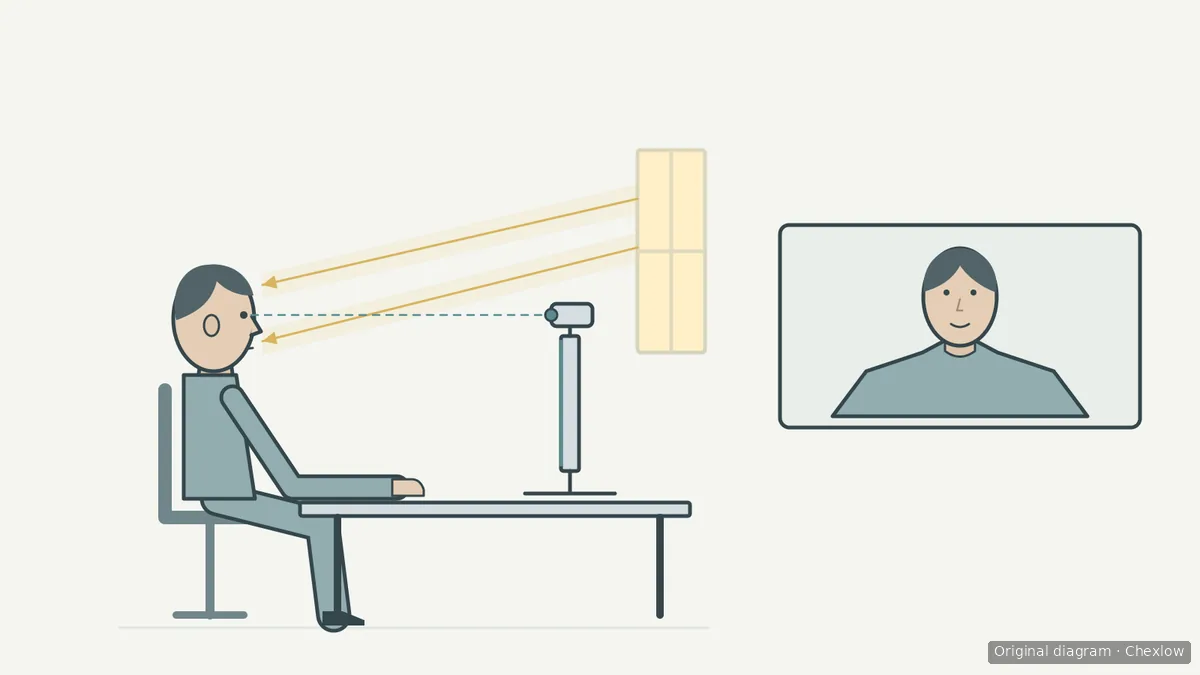
The diagram shows relationships, not prescribed distances or a measured camera image. Use it to check lens height and the amount of your upper body in view.
If you adjust framing in software, change one control at a time. Logitech describes a live settings preview and qualifies zoom and pan by model support. Check what your own camera and app offer; do not assume that every webcam has the same controls.
Put the available light in front of you
A bright background with a dark face is a reason to examine light placement first. Logitech explains that backlighting can create a silhouette and suggests frontal light, including a desk lamp near the monitor.
Try a position facing indirect window light, or reposition a lamp you already own. Compare the preview before and after the change. Look at whether your face is easier to see and whether bright patches or shadows remain distracting; choose the position from the picture rather than from how bright the room feels.
HP notes that indirect window light can soften hard edges, but daylight changes with the weather and time of day. Check the setup at the time you actually make calls. A daytime arrangement alone does not settle an evening-lighting problem.
If the available light still cannot produce a usable result at your usual call time, compare a ring light and a softbox for video calls. Decide what needs lighting and where a complete setup can fit before buying one.
Check the call setup and name what is still wrong
HP recommends testing the webcam before meetings. Reopen the app you actually use and check the picture from your normal seated position. Turn your head and move as you would during a call rather than judging a single still pose.
- The angle, frame and face lighting now work. Keep the existing setup; this positioning task has not established a reason to replace the camera.
- The camera cannot stay in the required position. Revisit the compatible support and available desk space.
- The app shows a different camera or no picture. Resolve camera selection or access before continuing to adjust the physical setup.
- You still have a separate recording or cropping requirement. Write down that requirement and read how to choose between a 1080p and 4K webcam.
This sequence separates a placement problem from a purchasing question. Keep a note of the useful camera position and lighting arrangement so you can return to them before the next call.
Como este guia foi construído
This guide was written by AI for Chexlow, using Logitech’s webcam setup and settings guidance and HP’s webcam and lighting articles. The adjustment sequence and stopping points are editorial recommendations for an already-owned webcam; no hands-on product testing or human approval is claimed.
Original SVG diagrams created for Chexlow