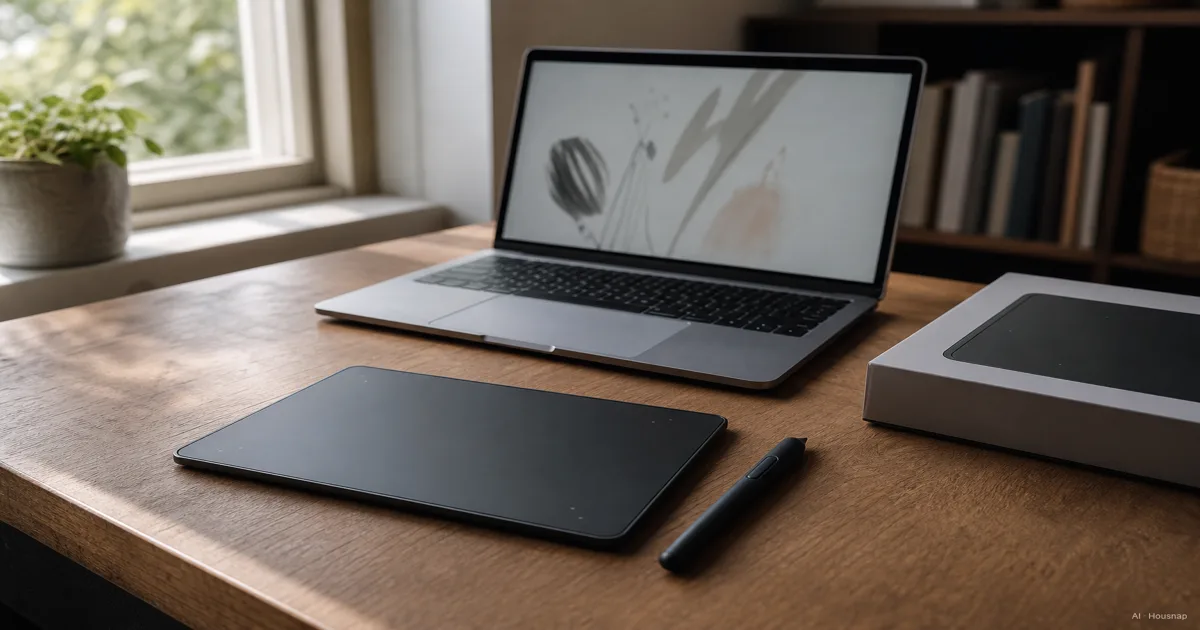
Choose where you want to look while drawing
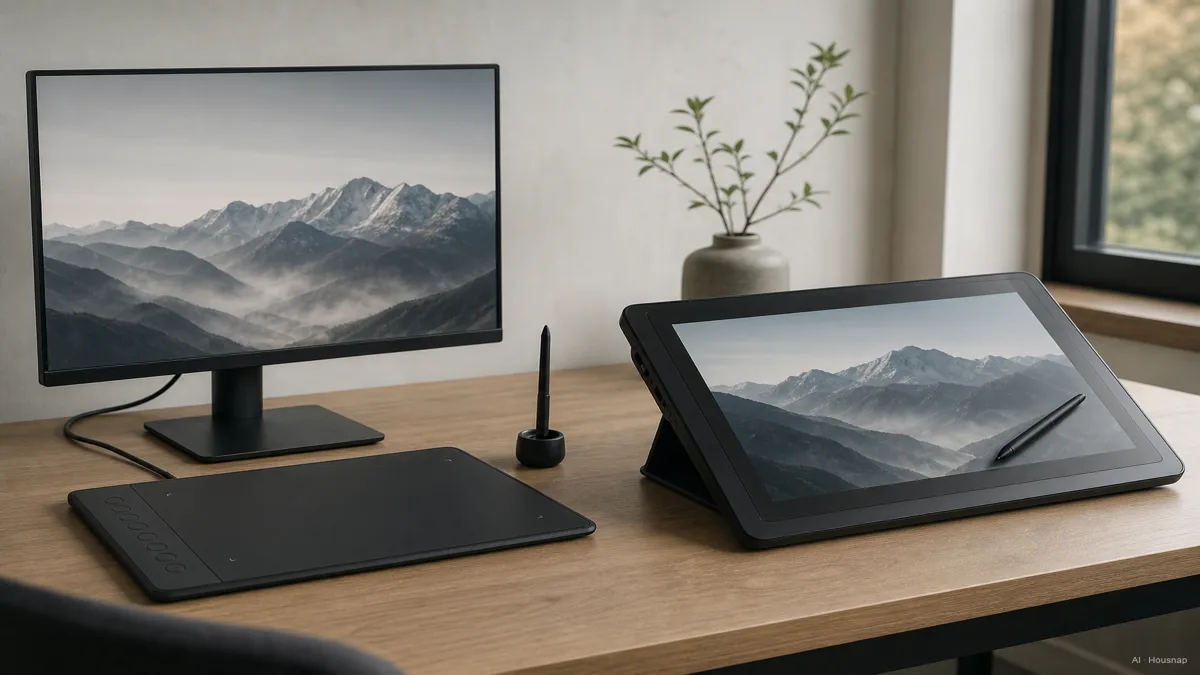
A screenless pen tablet puts your hand on a pad and your eyes on a separate monitor. A pen display puts the image on the drawing surface. These are the two computer-connected options covered here (ugee’s explanation).
- Start screenless if you want to keep using your existing screen and are willing to try drawing while watching the cursor elsewhere.
- Choose a pen display if seeing the image beneath your hand is a priority. Before paying for that preference, try drawing near the edges and reaching your usual keyboard shortcuts.
- Pause this purchase if you want one device that runs your drawing software without a separate computer. If you also need a laptop, compare a 2-in-1 with a traditional laptop, checking pen support on the exact model.
These are selection criteria, not a ranking of artistic ability. A screen should solve a preference you can name.
Check the connection before choosing a model
Write down your computer model, operating-system version and drawing app. Check each candidate’s support page against that list. Do not settle for a listing that only says “compatible with computers.”
For a pen display, identify three things separately: video, pen data and power. For example, Wacom’s Cintiq 24 connection instructions specify DisplayPort Alt Mode for USB-C video, offer HDMI plus USB alternatives, and require a power adapter. That is a model-specific example, not a wiring rule for every display.
Open the candidate’s connection diagram beside your computer’s port specifications. If you cannot identify a supported connection and the required cables, leave that candidate off the shortlist until you can. A connector that fits is not enough evidence.
Measure drawing space and desk space separately
The active area is the part that accepts pen input, not the whole device (Wacom’s active-area guide). Record both its dimensions and the product’s outside dimensions.
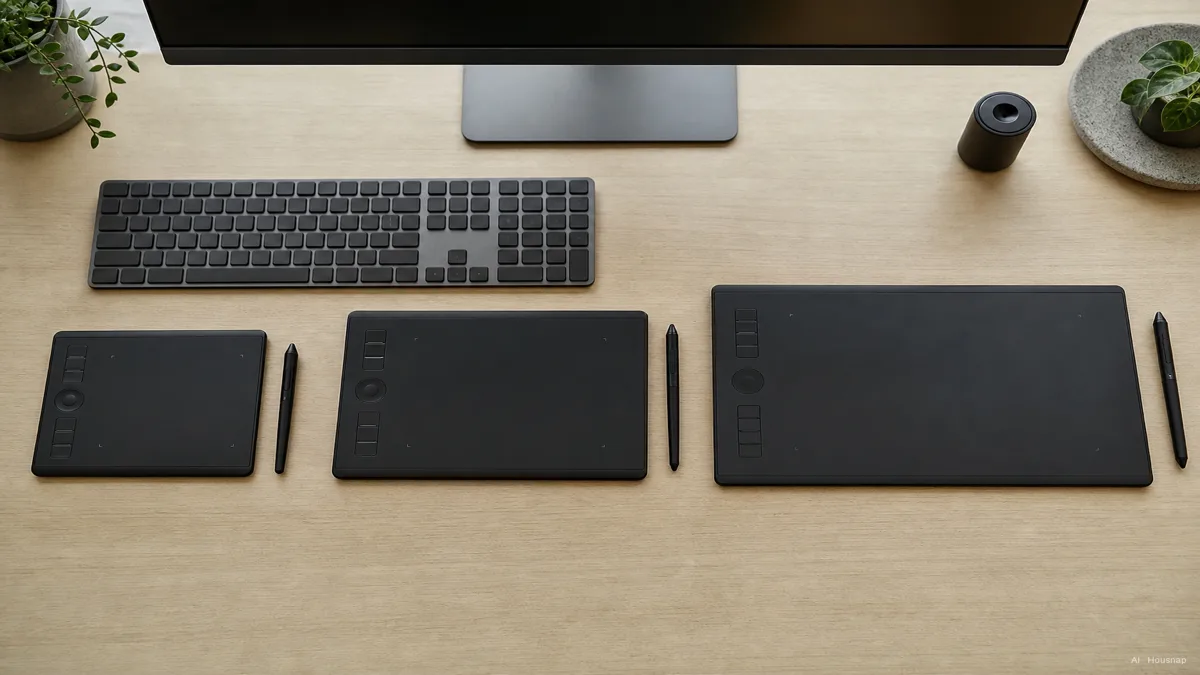
Make paper outlines of your shortlisted sizes. Put them where you will actually draw, with the keyboard still within reach. Sketch your usual small details and broad curves inside each outline. This checks space and reach; it cannot tell you how the pen feels.
For a screenless tablet, also decide which screen it will control. Wacom’s mapping settings allow you to select one monitor rather than the whole multi-monitor desktop. Compare sizes with that intended setup in mind.
If drawn shapes appear stretched, check the mapping before blaming the size. Wacom’s Force proportions setting preserves proportions but can leave part of the tablet inactive.
Compare the strokes you make, not just the biggest number
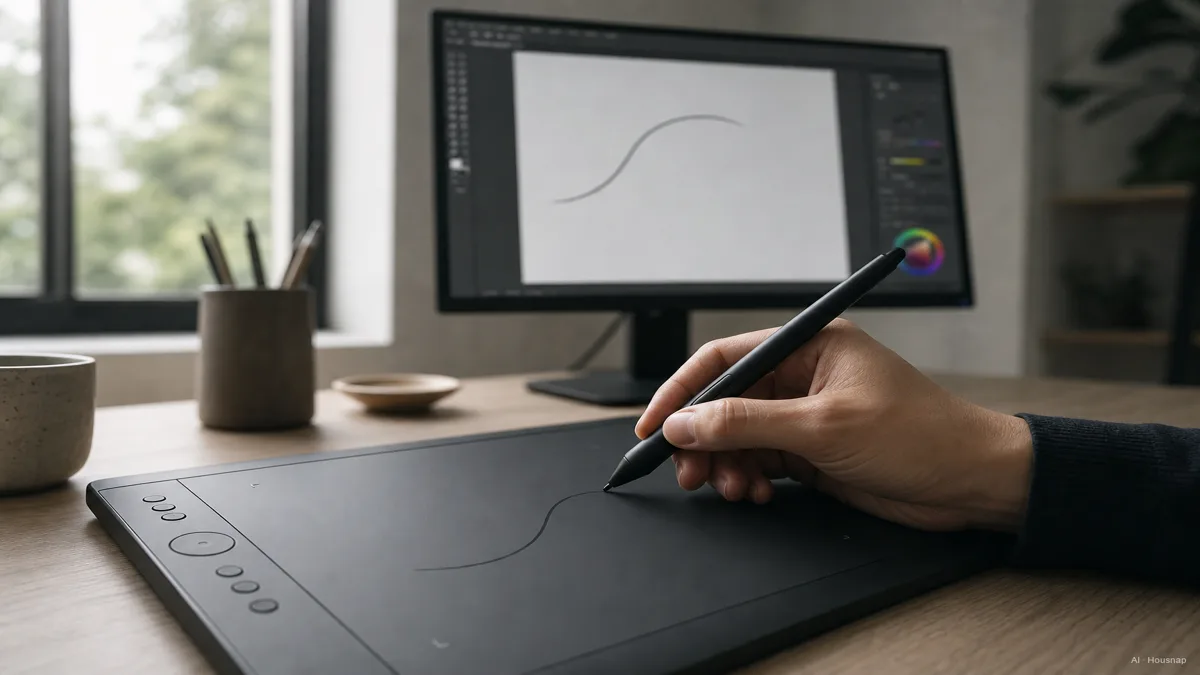
Pressure levels describe detected pressure steps; tilt detects pen angle. They are separate capabilities (XPPen’s buying guide). Initial activation force concerns how lightly a stroke can begin; XPPen also discusses it separately from pressure resolution in its X3 explanation.
If you can try a candidate, use your usual app and brush:
- Light start. Begin several strokes gently. Note whether you need to press harder than you normally would.
- Pressure change. Draw from light to firm and back. In Clip Studio Paint, you can adjust the pressure response and try it again.
- Tilt. If angled shading matters to you, try a brush configured to respond to tilt. Ask for a demonstration of that feature rather than assuming a pressure-sensitive pen includes it.
Without a demonstration, treat missing specifications as unknowns. Do not turn a brand name or a larger pressure number into a promise about feel.
Buy a complete setup and check it on arrival
Compare the exact model and bundle: included pen, necessary cables, power supply, any support you need for the display, and return conditions. Budget for missing essentials before comparing totals. Buy an extra accessory only when you have identified its job and compatibility.
Follow the manufacturer’s installation sequence. Wacom’s instructions, for example, include installing the driver, restarting and granting the required macOS permissions.
Then repeat your drawing checks. If pressure fails, use guidance for your app, operating system and device type. Clip Studio’s external-tablet troubleshooting distinguishes its Windows Wintab instructions from tablet-PC settings; “has a screen” does not identify the right input mode.
Keep a candidate when the connection works, the drawing area fits and the pen behaves acceptably in your app. If one of those remains unresolved, resolve it before spending more on accessories.
How this guide was built
This guide was written by AI for Chexlow, using manufacturer documentation from Wacom, XPPen and ugee, plus Clip Studio Paint’s official help. It turns those sources into a first-purchase checklist for computer-connected drawing tablets; the selection advice is editorial judgment, not hands-on testing or a new human review.
Edited by the Chexlow team · Images are AI-generated illustrations