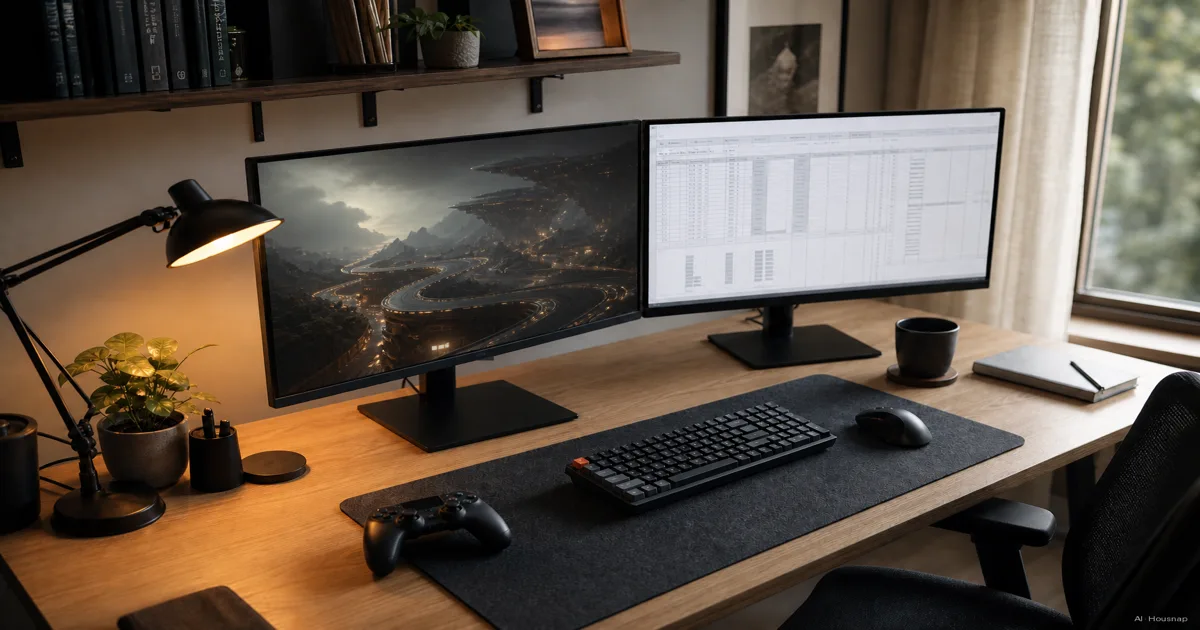
Start with the compromise you want to avoid
Before comparing specifications, write down your main task and the feature you would miss most. Use these starting points to build a shortlist:
- Mostly documents and laptop work. Prioritize readable text, useful stand adjustments, and your required connections. Decide later whether extra speed deserves part of the budget.
- Fast games are important. Start with gaming monitors, while keeping your work and desk requirements on the list.
- One screen for both. Compare a 27-inch QHD gaming model around 144Hz with an office-focused QHD model. This is a practical starting comparison, not a specification everyone needs.
Keep both categories in consideration until you have checked the individual models. Do not accept a compromise in text size or connections just because a product carries the right label.
Choose a screen you can comfortably read
Full HD is 1920×1080, QHD is 2560×1440, and UHD 4K is 3840×2160. Compare resolution alongside screen size. Intel's monitor guide
- Try 24-inch Full HD when you want a compact shortlist. Open a familiar document at your usual reading distance.
- Compare 27-inch QHD for a shared work-and-game screen. Check whether your usual windows fit at a readable text size.
- Include 4K when fine detail matters enough to investigate further. Try your actual apps and preferred scaling before deciding.
If text looks too small, try Windows scaling first. It enlarges text and apps; lowering resolution below the panel's native setting can reduce text sharpness. Microsoft's scaling guidance
Pay for motion performance you can use
Hz counts screen updates per second. Check game performance at your intended settings before paying for high refresh rates. Compatible adaptive sync can coordinate updates with frame delivery. Intel's refresh-rate explanation
For mixed use, include a roughly 144Hz candidate. Consider 240Hz or higher when fast games dominate your priorities and your computer can make use of it. Treat these as shortlist starting points, not promised performance.
A 1ms gray-to-gray claim concerns pixel transitions, not input lag. Intel's monitor guide Overdrive speeds transitions but can produce false-colored outlines when pushed too far. EIZO's response-time explanation
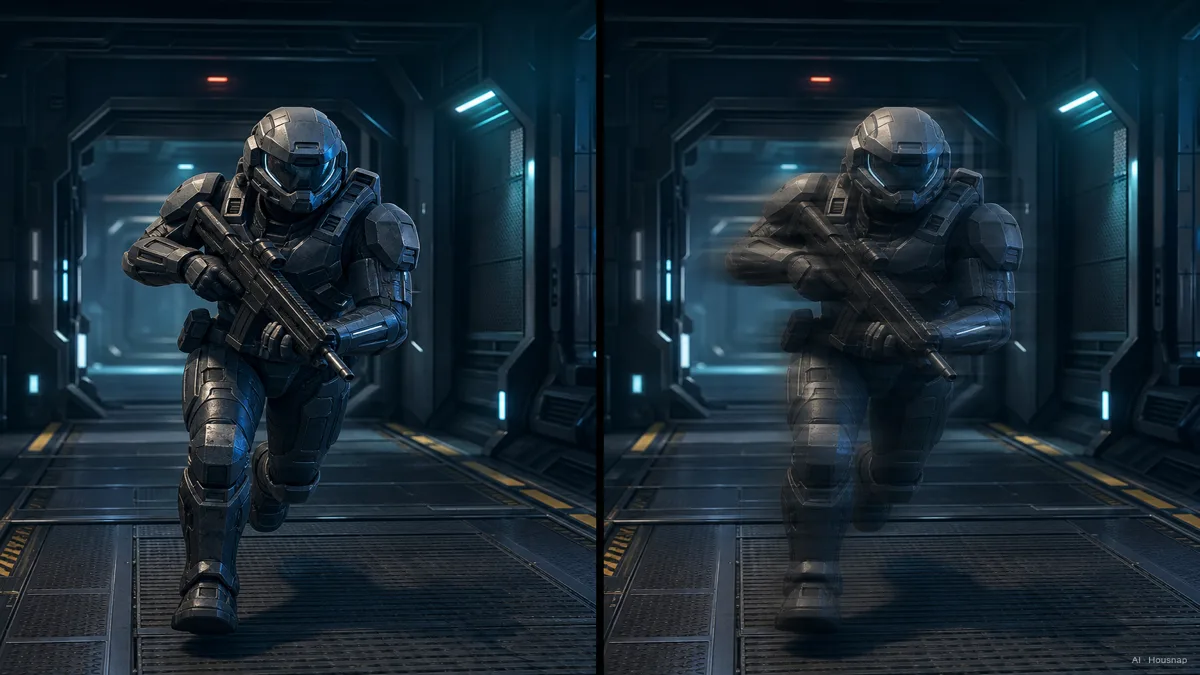
The illustration explains trailing; it is not a product test. Before choosing between two fast monitors, look for measurements of the exact models at the refresh rates you expect to use, including their overdrive settings.
Use panel type to ask better questions
IPS generally changes less in brightness and color when viewed off-center than VA or TN. EIZO's display-quality guide
Compare VA for contrast and TN for speed-focused gaming. These are broad LCD tendencies, not model rankings; OLED uses a different display technology. BenQ's panel comparison
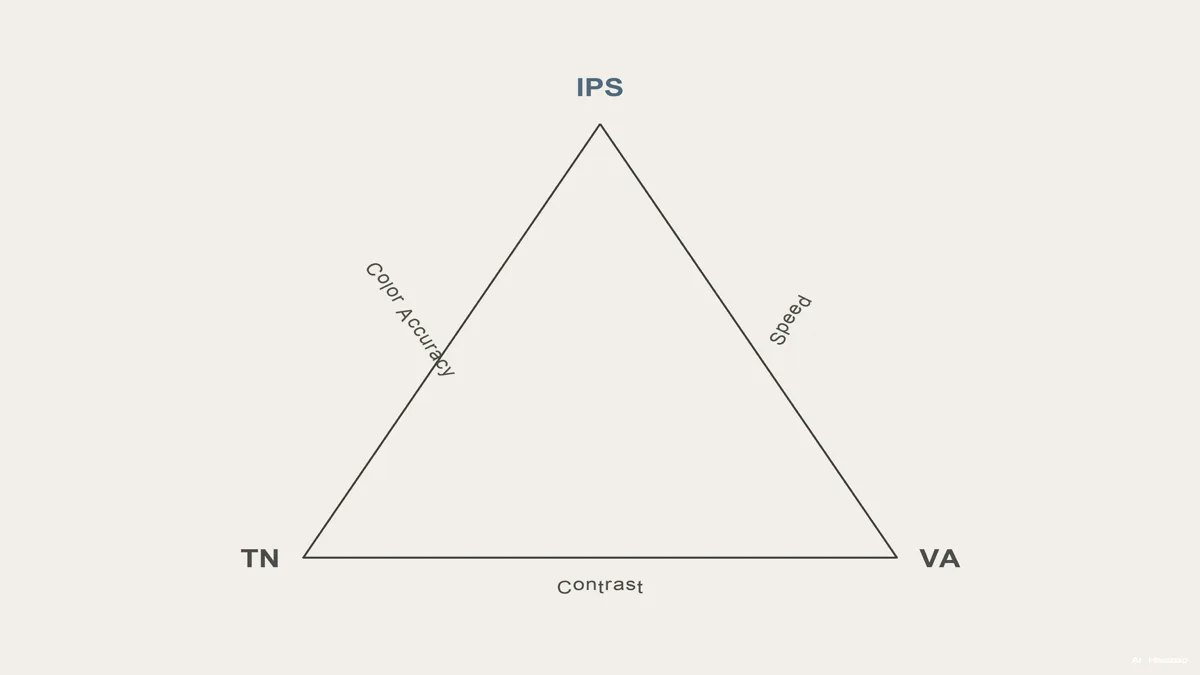
Use the triangle as a simplified guide to questions, not a promise of color accuracy. For color-sensitive work, ask for measurements of the exact model rather than selecting it from the panel name alone.
If your remaining choice is viewing-angle consistency versus dark-scene contrast, continue with choosing between IPS and VA.
Check connections and desk fit before ordering
Write down your required resolution and refresh rate together. Verify that combination for the computer's output and the monitor input you will use. Intel notes that maximum resolution depends on the chipset, monitor, and manufacturer configuration. Intel graphics support
For USB-C, check video and charging separately. DisplayPort Alt Mode needs compatible devices and cable; charging must meet the laptop's power requirements. Microsoft's USB-C guidance
- Choose the office-focused option if it meets your reading and connection requirements and extra gaming speed is not worth the tradeoff.
- Choose the gaming option if motion matters and it also passes your work requirements.
- Pause the purchase if the required display mode or charging support remains unclear. Get the exact specification confirmed first.
Measure the supplied stand's footprint and check its adjustment range. If it cannot position the screen where you need it, compare a monitor arm with a separate stand or riser before adding an accessory.
After connecting, check the active resolution and refresh rate in Windows Advanced display. Microsoft's display settings
Cómo se elaboró esta guía
Written by Chexlow's AI editor using Intel, Microsoft, EIZO, and BenQ documentation. The guide turns those technical explanations into first-purchase checks; its shortlist suggestions are editorial judgments rather than product test results.
Editado por el equipo de Chexlow · Las imágenes son ilustraciones generadas por IA