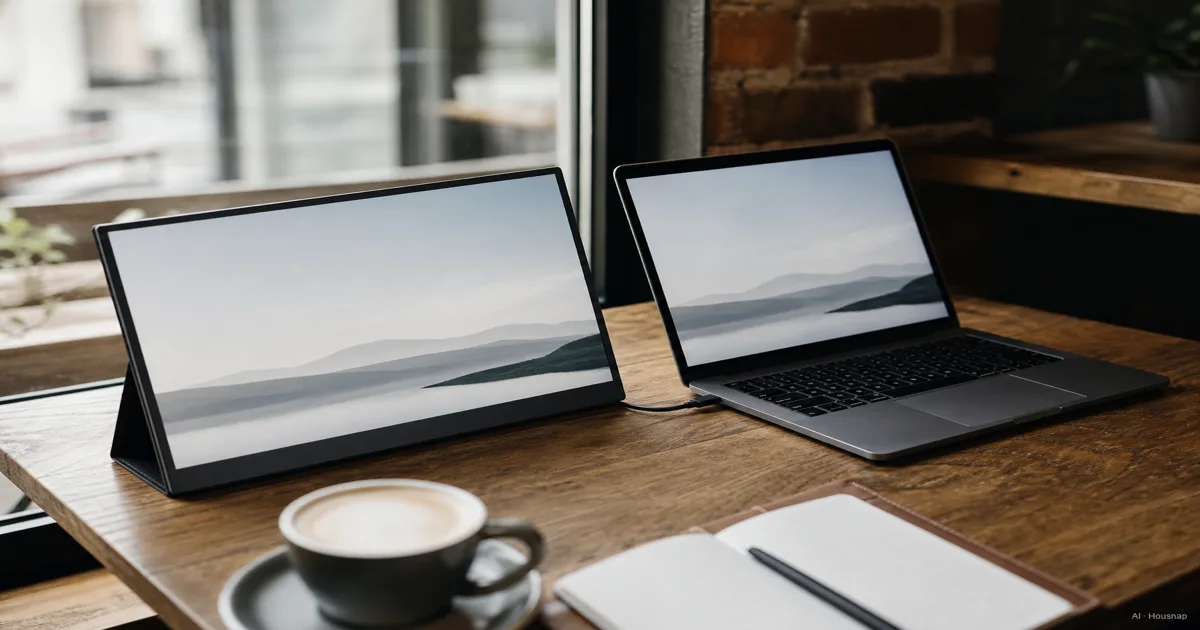
Confirm how your laptop will send video
Open your laptop’s manual before comparing monitors. For a native USB-C video connection, look for DisplayPort Alt Mode, which carries DisplayPort video through USB-C. The connector’s shape alone does not establish support. Dell explains the distinction.
Write down the exact laptop model and the port you will use, then choose a connection route:
- USB-C video output confirmed. Check that the monitor accepts that signal and that the supplied cable is intended for this connection.
- Using HDMI instead. Choose a monitor with the matching input and check its connection diagram, including power. Compare the actual connectors, not just the word HDMI.
- Compatibility still unclear. Ask the manufacturer to confirm the laptop, monitor and cable combination before ordering. If the listing requires display software, check operating-system support separately.
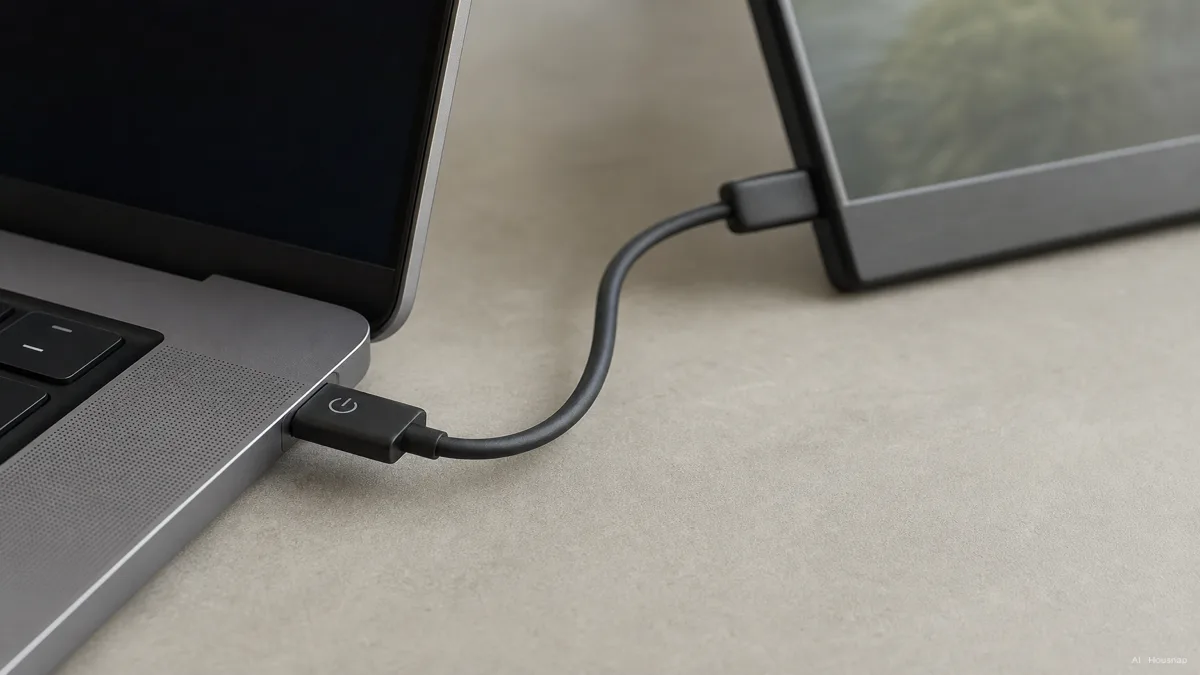
The illustration shows the arrangement to verify, not a promise that every USB-C port supports it. If charging and peripherals also need that port, work through whether you need a dock or a USB-C hub before adding another box to the bag.
Separate screen power from laptop charging
Sketch the setup you expect to use: laptop to monitor, plus any connection to a power outlet. Then check two different specifications: what powers the screen, and whether the monitor can pass power back to the laptop.
That distinction can affect the image. The ASUS MQ13AH can limit brightness when laptop power is insufficient; its manual also shows a separate power connection for HDMI use. MQ13AH user guide.
Pass-through charging is a feature to verify, not something to infer from a second USB-C socket. Lenovo documents it for the ThinkVision M14, while listing its power adapter as unbundled. M14 specifications.
Before buying, ask for the required power input, the supported laptop-charging output and the included accessories. Count any missing power equipment in both your budget and packed weight. If you need a separate battery for use away from outlets, first read how power-bank capacity and USB PD output differ, then match the output to the monitor’s documented requirements.
Choose a size you can carry and comfortably read
Give the second screen a specific job: keeping a reference document visible, showing a spreadsheet, or sharing a presentation. If you cannot name the window you will keep on it, try your laptop’s existing window arrangement before buying more hardware.
Measure your bag’s usable compartment and the table space beside your laptop. Include the stand’s footprint and room for cable connectors. Check whether the published weight includes the stand or cover; a bare-panel figure is not your complete carrying load.
For scale, Lenovo lists the 14-inch M14 at approximately 598 g, while ASUS lists the 15.6-inch MB16ACV at 0.9 kg. Both are Full HD. These are specification examples, not a ranking. Lenovo, ASUS.
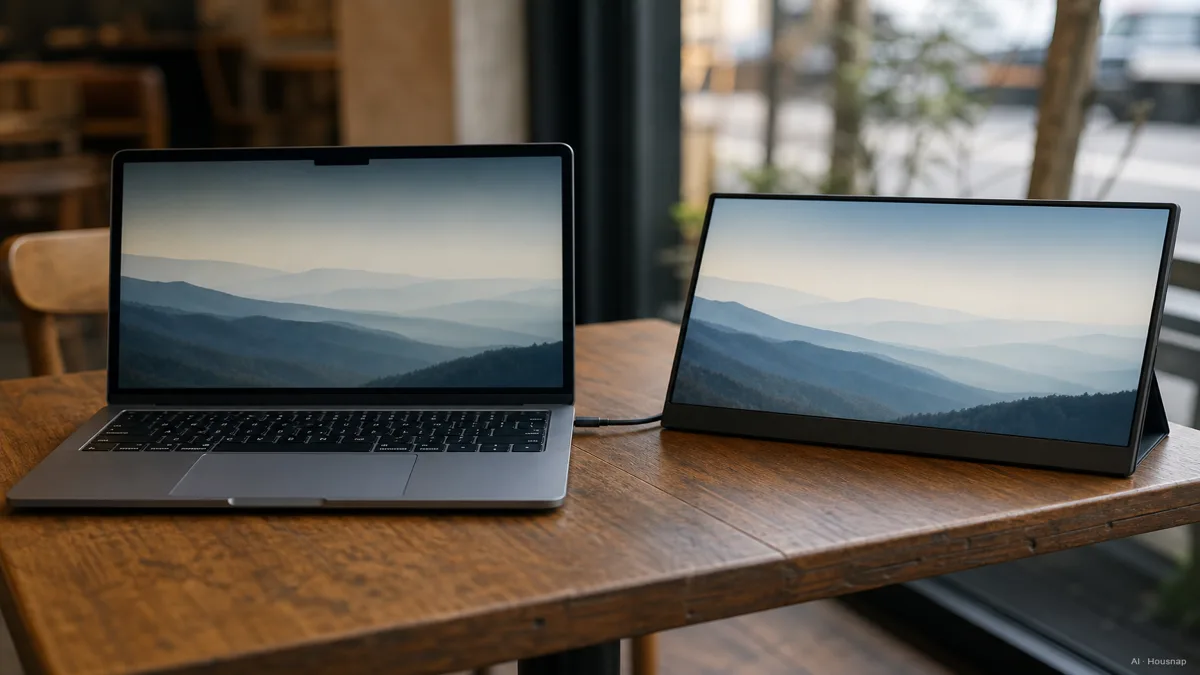
Check text at your normal viewing distance. In Windows, adjust text and app scaling while keeping the recommended resolution; lowering resolution can make text less sharp. Microsoft’s display settings guide.
Full HD is a useful starting point for this guide’s document-and-reference use case, not a ceiling. Consider higher resolution if you still want finer text or image detail at a comfortable display size. Judge the space left for your actual apps after scaling, rather than buying from the pixel count alone.
Choose the panel and finish for your work
For a screen that will mostly hold documents, start with IPS candidates. Consider OLED when image contrast is a priority, but check the particular model’s specifications and protection settings before deciding.
ASUS warns that prolonged static, high-contrast images can cause OLED burn-in and recommends leaving ZenScreen OLED screen protection enabled. For long sessions with fixed interface elements, that is a reason to weigh IPS first. ASUS OLED guidance.
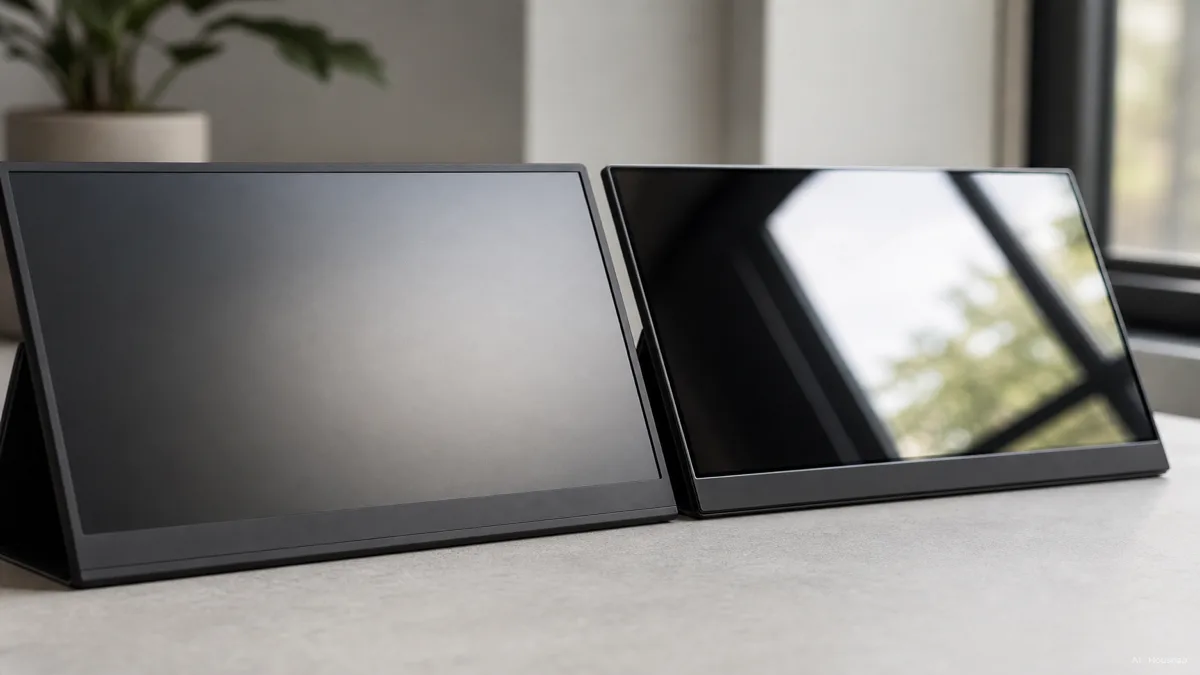
Treat the illustration as a comparison of two finishes, not a rule that every IPS screen is matte and every OLED is glossy. The MB16ACV specifies an anti-glare surface; the MQ13AH specifies a glare surface. MB16ACV specifications, MQ13AH specifications.
For window-side use, compare the finish and brightness specifications, and try to view the screen under similar lighting. Do not turn a brightness number into a guarantee of outdoor readability. For photo work, also check the colour modes and accuracy information relevant to your workflow; the panel name alone is not enough to choose from.
Gaming needs a separate check. The MQ13AH lists 60 Hz on both HDMI and USB-C, so OLED does not automatically mean high refresh rate. Verify the resolution and refresh rate supported through the connection you will actually use. MQ13AH specifications.
Turn those checks into a shortlist
Compare only candidates that pass your connection, power and carrying requirements. Then decide which remaining difference is worth paying for:
- Documents and reference windows. Start with Full HD IPS, then favour readable text, a usable stand and a finish that suits your workspace.
- Frequent travel. Compare the complete kit: monitor, cover, cables and any required power equipment. Choose dimensions that actually fit your bag.
- Image-focused work. Pay for the resolution, colour specifications or contrast you can put to use. Check the exact model rather than treating OLED as a complete specification.
- Gaming or touch input. Require confirmation of the intended resolution and refresh rate, or of touch support on your operating system. Do not buy these features just because they appear on the box.
Before paying, save the manual and included-accessory list, and read the seller’s return conditions. After delivery, use your own laptop, intended connection and normal apps to check text size, reflections, stand position and power behaviour. A screen that fits those conditions is a better first purchase than one that merely wins the specification comparison.
Come è stata costruita questa guida
Written by Chexlow’s AI editor using Dell’s USB-C guidance, ASUS and Lenovo specifications and manuals, ASUS OLED guidance and Microsoft’s display-setting instructions. The selection order and document-focused starting point are editorial judgments; the named models illustrate specification differences. This guide is based on documentation, not hands-on product testing.
Curato dal team Chexlow · Le immagini sono illustrazioni generate dall’IA