Write down the setup you need to connect
Before comparing docks, make a short list: your exact laptop model and operating system, each monitor's resolution and refresh rate, and the peripherals you want connected together. Include whether you want to keep the laptop screen open. Refresh rate, measured in Hz, is how often the display updates each second.
Check the laptop's port specifications rather than its connector shape. USB-C alone does not establish support for video, Thunderbolt or every cable capability. Look specifically for DisplayPort Alt Mode, which carries a native display signal through USB-C, or the stated Thunderbolt/USB4 capabilities. Synaptics explains the connector distinction.
For a Mac, look up the exact model's external-display specifications: the supported combination depends on the model, resolution and refresh rate. Apple's display guide links to the relevant model information.
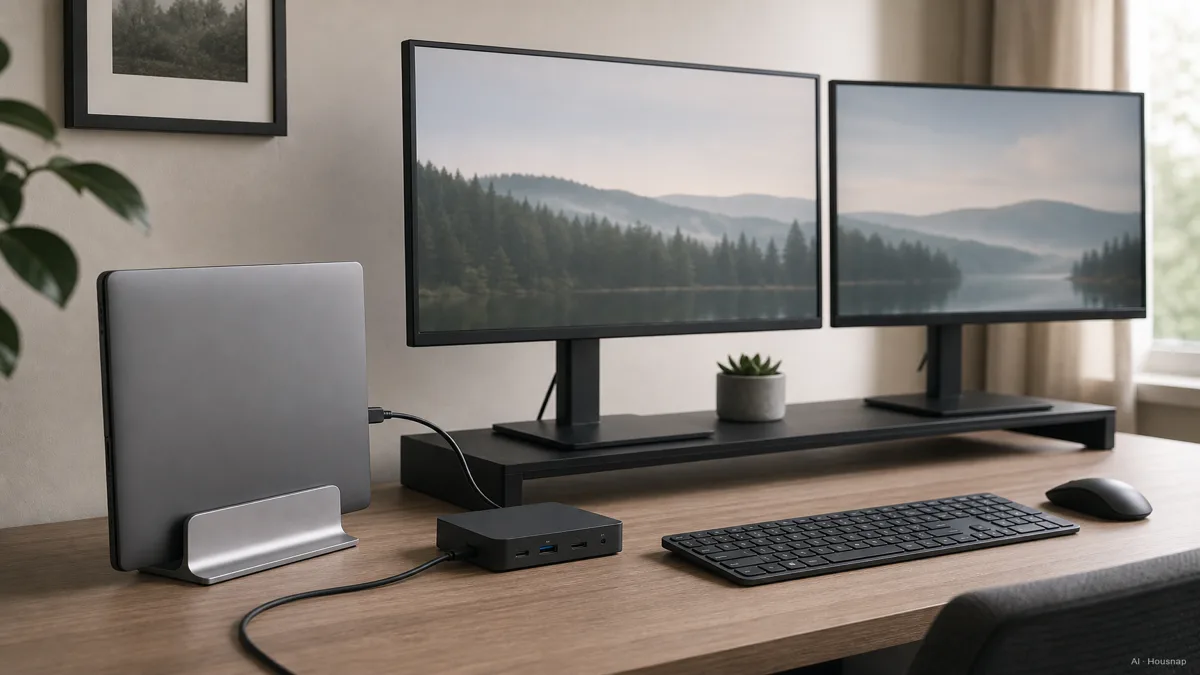
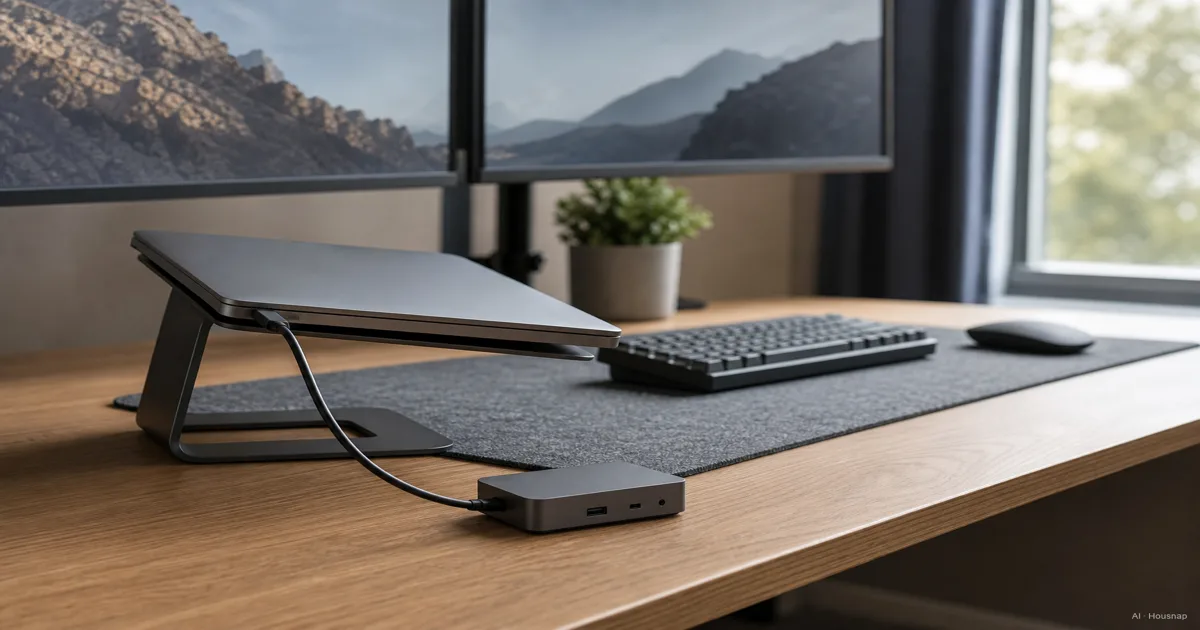
Use this desk layout as a planning illustration, not confirmation that your laptop supports two screens with its lid closed. Check that configuration in its documentation.
If your second screen needs to travel with you, choose its connections and power arrangement before choosing the hub. The portable monitor buying guide covers that separate decision.
Choose the display connection before the dock size
A small hub is a sensible starting point for basic expansion; a fuller dock is worth comparing when you need more desk connections. These are buying alternatives, not a guarantee of particular display capabilities. Plugable's hub and dock comparison explains their different uses.
- USB-C hub or native-video dock. Shortlist one when its compatibility documentation explicitly covers your laptop and intended screen combination. Read the simultaneous-output specification, not just the maximum resolution of one socket.
- Thunderbolt dock. Consider one when the laptop supports it and your display or storage requirements justify the bandwidth. Thunderbolt 4 provides 40 Gbps; Thunderbolt 5 provides 80 Gbps bidirectionally, with up to 120 Gbps through video Bandwidth Boost. That boosted number is not a general storage-transfer promise. Intel explains the distinction.
- DisplayLink dock. Consider this separately when native display support does not meet your needs. It uses a software driver to encode screen content for the dock to decode. Check the dock's supported operating systems and display combinations before choosing it. Synaptics explains how it works.
Two HDMI sockets do not automatically mean two independent desktops on a Mac. MST splits a DisplayPort connection across displays, but macOS does not use that split for independent extended screens. Plugable documents this limitation.
DisplayLink also changes the setup requirements. On macOS, it needs Screen Recording permission. Some protected video may fail to play while DisplayLink screens are connected, including on other screens. DisplayLink documents the playback limitation. For a work laptop, confirm software approval before buying; for a desk used for streaming, check this limitation against your viewing needs.
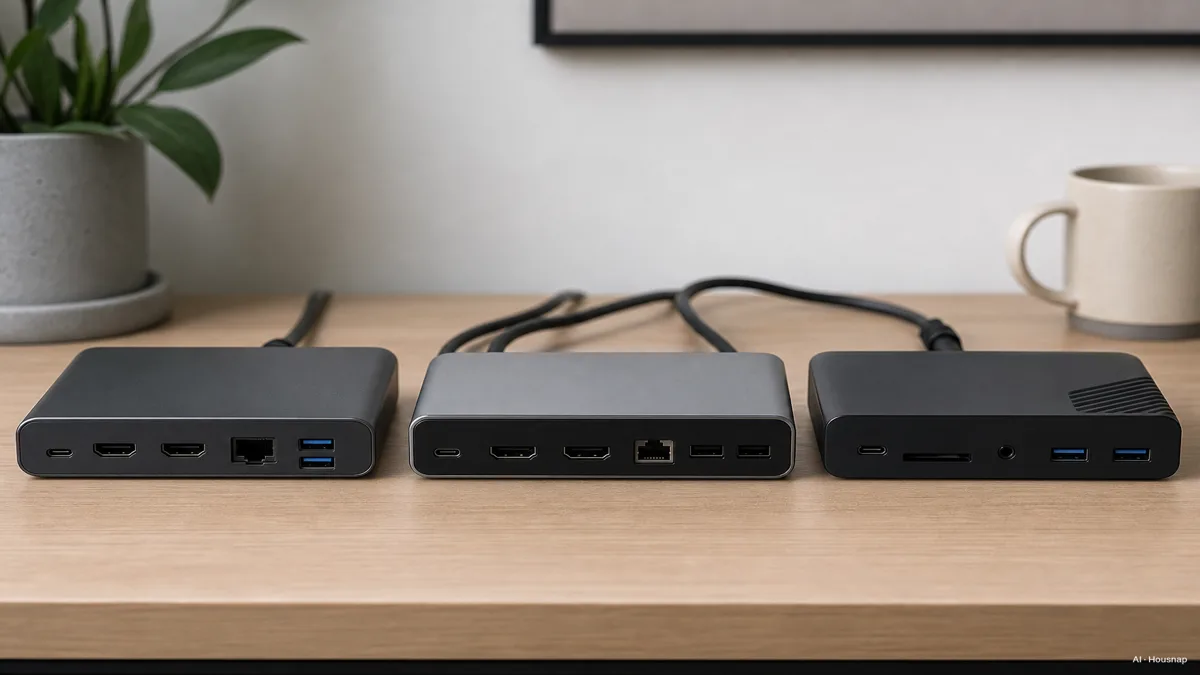
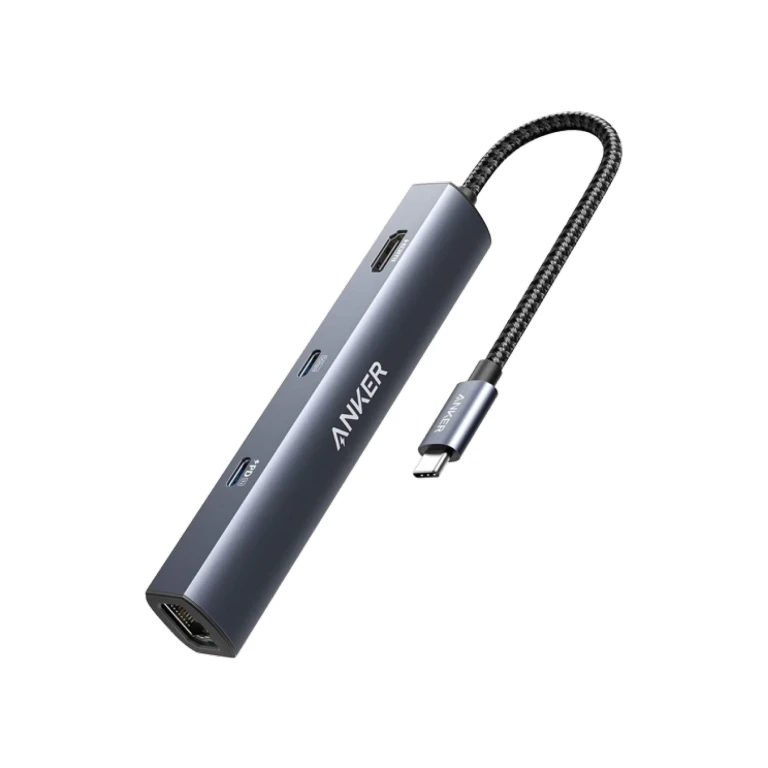
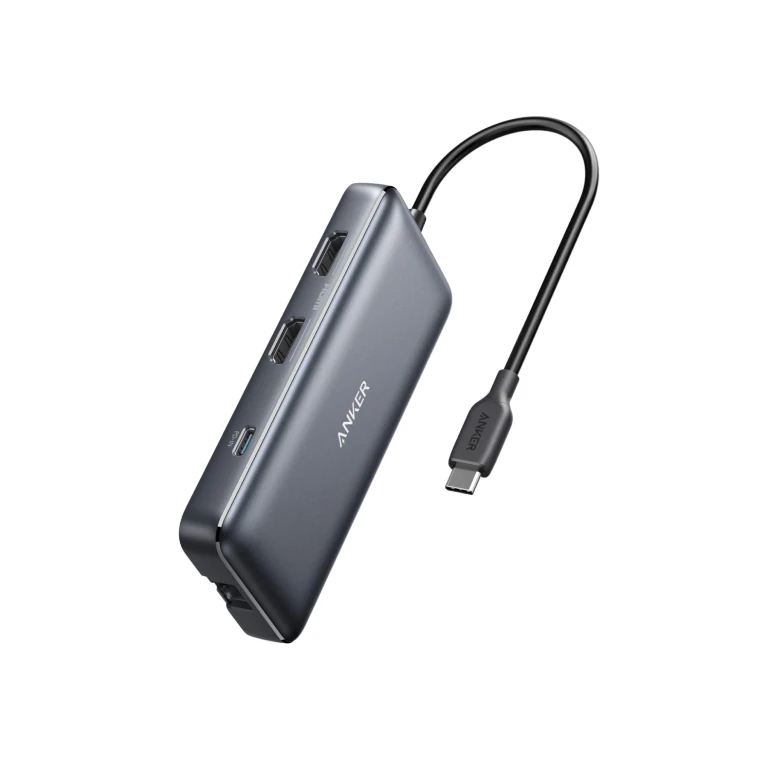
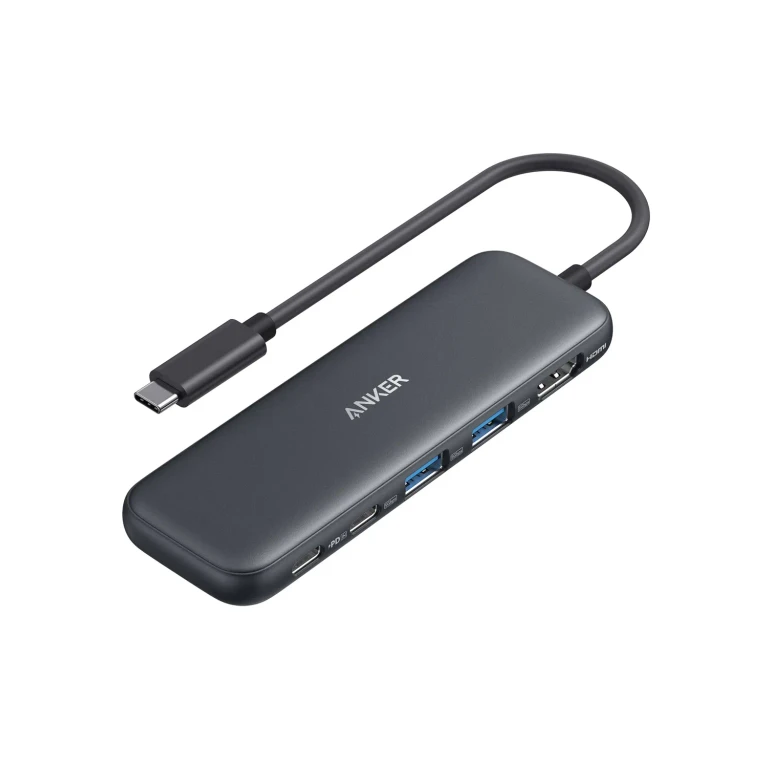
Compare the compatibility notes behind these different port layouts. Size and connector count alone cannot settle the choice.
Check the power that actually reaches the laptop
Look for power delivery to the host, meaning the laptop, and compare it with the laptop manufacturer's USB-C charging requirements. Inadequate or incompatible charging equipment can cause slow charging or discharge; the cable must also meet the required power specification. Microsoft's charging guidance explains these failure points.
Two examples make the labels easier to read:
- Powered dock. CalDigit lists a 230W power supply for the TS4, but up to 98W to the host. The supply rating is not the laptop charging output. TS4 specifications.
- Pass-through hub. Anker's A210B reserves 15W from a maximum 100W input, leaving up to 85W for the laptop. That subtraction applies to this model, not every hub. Anker's charging explanation.
For a pass-through hub, check whether a suitable USB-C Power Delivery charger is included or already available. Buy a separate charger only if needed, matching the hub's input requirements, the cable and the required laptop output. Do not assume an existing charger leaves the same power available after passing through a hub.
If the laptop requires its own power adapter for your workload, plan around that documented arrangement. A second power cable can be a better choice than buying a larger dock without confirmed charging compatibility.
Map every connection, then make your shortlist
Draw the connections once before ordering. Mark the laptop-facing port separately from the ports for accessories, then assign a socket to every device you intend to use together.
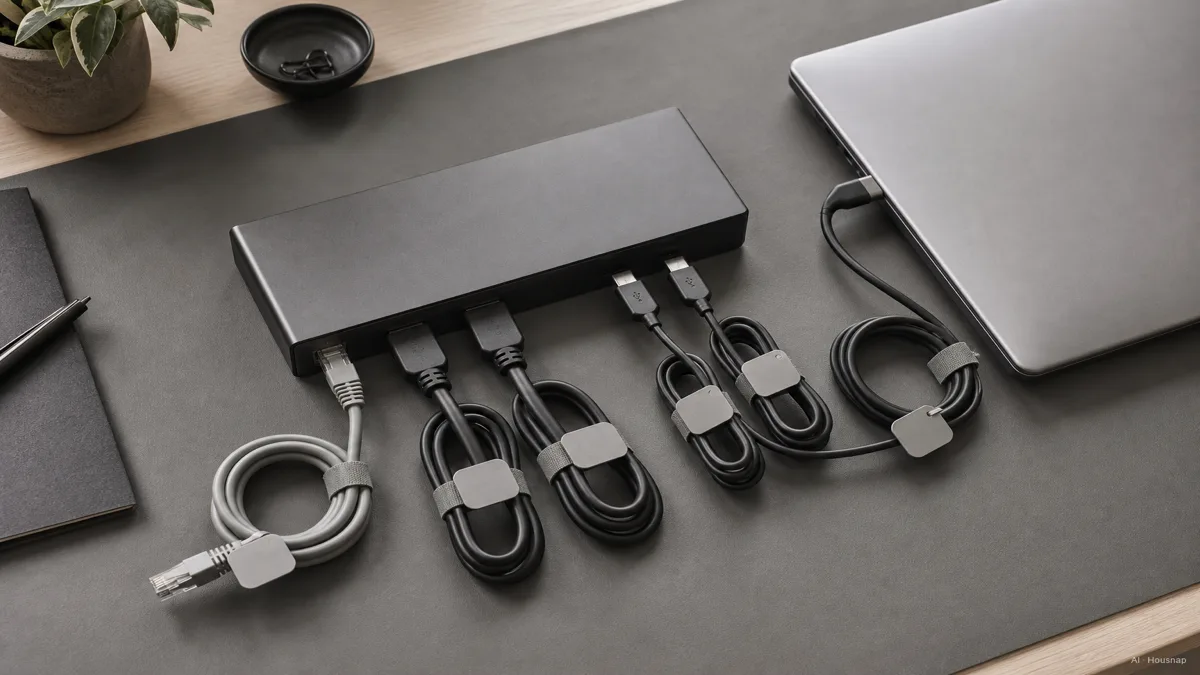
- Screens. Record the exact output sockets and simultaneous resolution/refresh-rate combination. Ask the manufacturer to confirm it if the specification only says “dual display.”
- Peripherals. Count the remaining USB ports after connecting screens and power. Check the stated speed of the port intended for an external drive, plus Ethernet or card-reader specifications if you use them.
- Cables and package contents. Check the supplied host cable's length and specifications, the power supply and any display adapters you would need. Match a replacement cable to the required standard rather than buying by connector shape.
- Purchase decision. Choose the hub if it meets the complete list. Choose a fuller dock when its additional connections or bandwidth solve a named requirement. If direct connections already work comfortably, keeping them is also a valid outcome.
Before the return period ends, try the complete setup together: independent screens at the intended settings, charging during your usual work, and the peripherals you rely on. Keep the compatibility information with your order so an unexpected limitation is easy to discuss with support.
How this guide was built
Written by Chexlow's AI editor using documentation from Intel, Apple, Microsoft, Synaptics/DisplayLink, Plugable, CalDigit and Anker. This guide turns those compatibility and power details into a first-purchase checklist; the selection advice is editorial judgment, not a claim of hands-on product testing.
Edited by the Chexlow team · Images are AI-generated illustrations