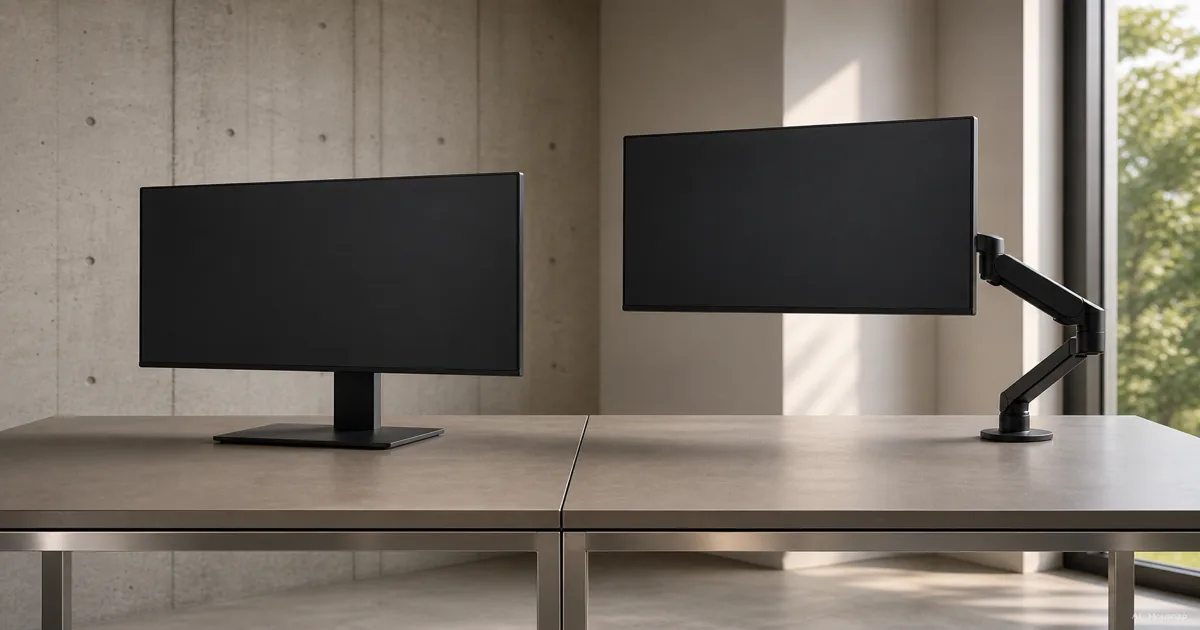
Start with the change you need
Put the screen where you want it before choosing hardware. Is it simply too low, or do you need to bring it closer, turn it toward someone, or clear room underneath?
- Only extra height. Consider a shelf-style riser that keeps the monitor on its existing base. Check the platform dimensions, added height and total load. It does not attach to the monitor's VESA holes; StarTech's riser documentation illustrates this platform design.
- Adjustment without a desk clamp. Consider a freestanding VESA stand, which replaces the original base. Some offer height, tilt and rotation adjustment, so “stand” does not necessarily mean fixed. This manufacturer's example shows the distinction.
- Frequent repositioning or space beneath the screen. Shortlist an articulating arm. Its reach and movement are the useful difference, particularly when you want to push the display aside. Ergotron's selection guide explains those movements.
If the supplied stand already meets your needs, keep it. There is no need to buy an accessory just to complete a desk setup.
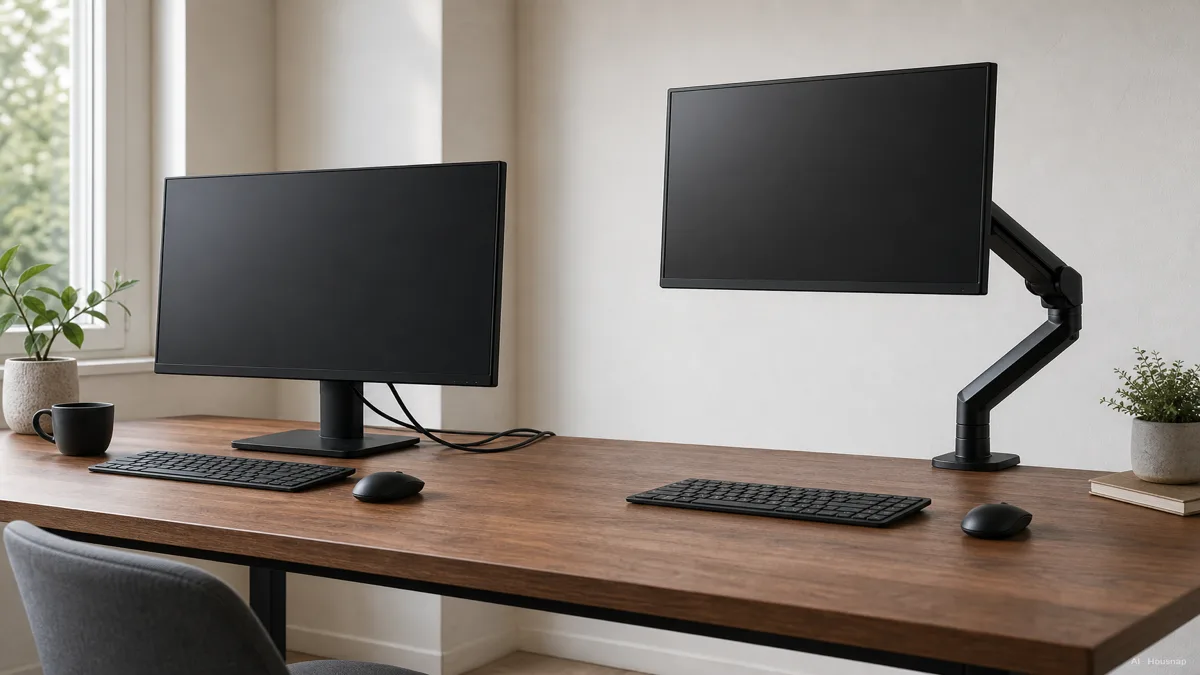
Check the desk before committing to an arm
Measure the desktop thickness at the proposed attachment point and look underneath it. Compare the available space with the exact clamp drawing; a frame or cable tray may occupy the space the clamp needs. A grommet mount fastens through a suitable desktop hole and can be an alternative when edge mounting is unsuitable. Ergotron's attachment guide shows why these clearances vary by mount.
Ask the desk manufacturer about your particular top and mounting location if suitability is unclear. Do not treat a clamp that opens wide enough as proof that the desk can support the installation. If you cannot confirm a suitable attachment, return to the freestanding options.
Planning to change between sitting and standing? Settle the standing desk or desk converter choice before ordering the mount, then check it against the surface you will actually use.
Match the display, then plan the adjustment
For an arm or replacement VESA stand, record the exact monitor model, its mounting-hole spacing and its weight without the original stand. Match that weight to the supported range, including any stated minimum. Humanscale's compatibility guidance makes this distinction explicit.
VESA describes the mounting interface; 75 × 75 mm and 100 × 100 mm are common monitor patterns. A matching pattern does not settle weight capacity or screen clearance. Check the model's complete requirements, as shown separately in this StarTech arm manual.
For a shelf riser, instead check the monitor with its base, plus anything else resting on the shelf, against the riser's load limit. Make sure the base fits its usable platform.
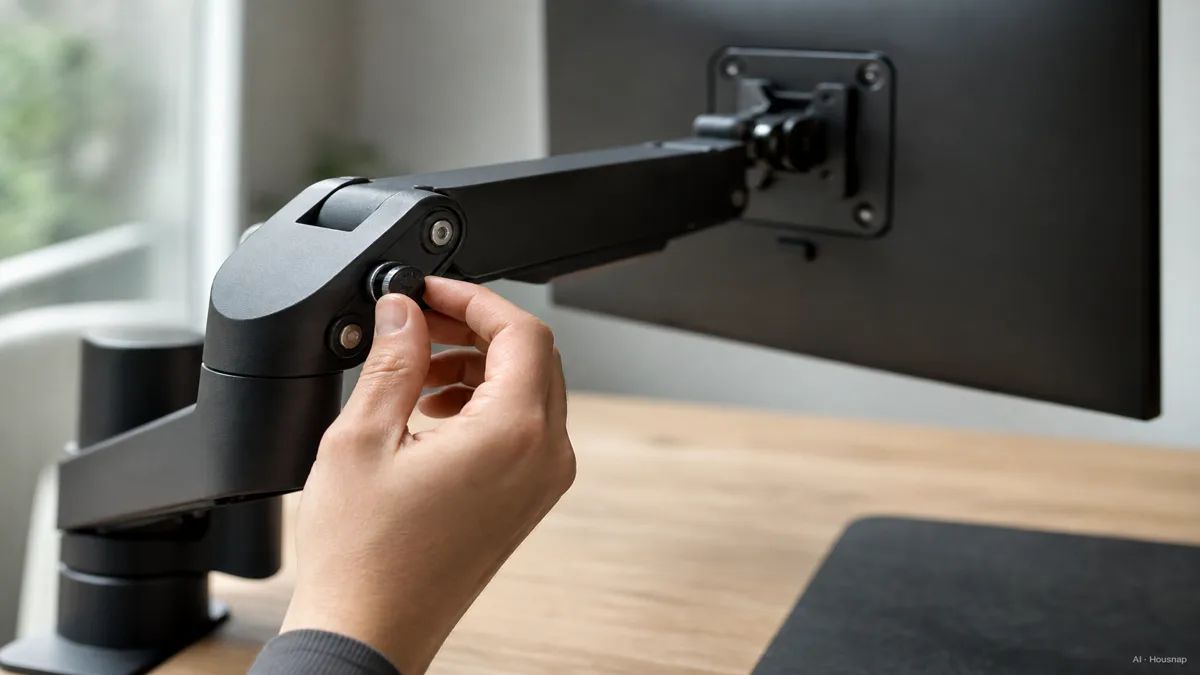
After installation, follow the exact manual for balancing the arm. Support the display during adjustments; tightening is not a way to increase the rated capacity. StarTech's installation instructions distinguish load limits from movement-resistance adjustment.
Buy the movement and layout you will use
Before comparing spring types, write down your required screen height, distance and orientation. Check the candidate's dimension drawing against those positions, including room behind the desk and clearance when rotating the screen. A long reach is useful only if the arm also folds into your working position.
Mechanical springs can also provide smooth adjustment; Humanscale describes using them in its arms. Treat gas or mechanical spring as a mechanism description, then compare the individual model's movement, adjustment instructions and warranty.
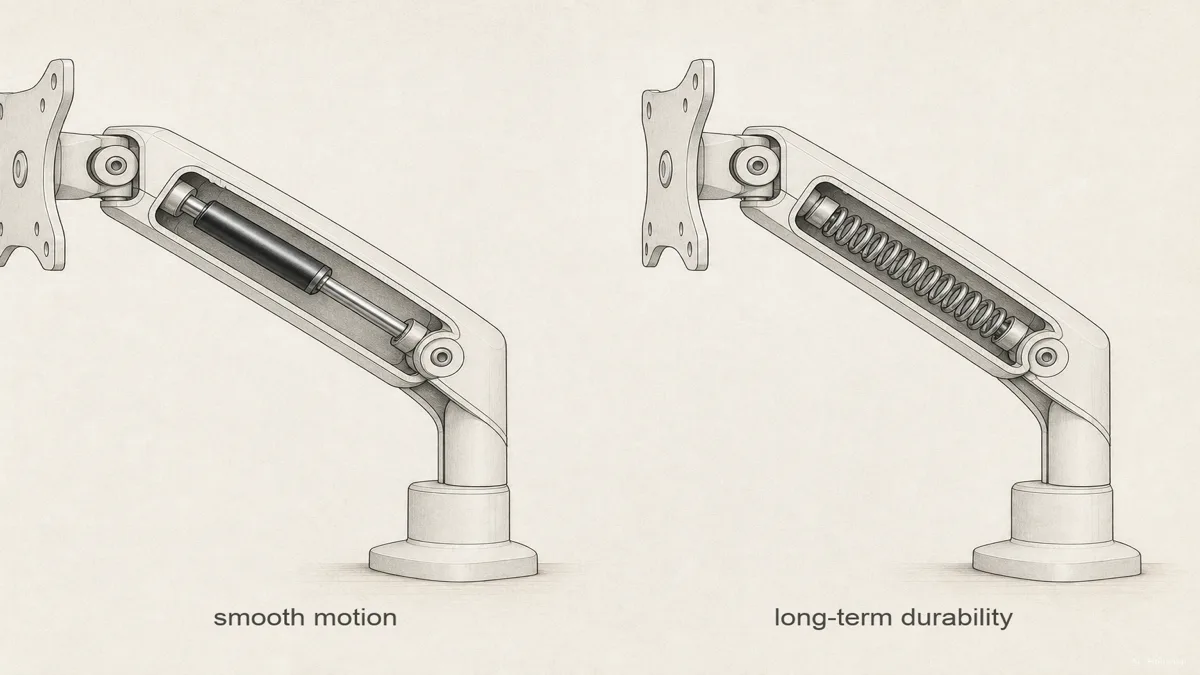
This illustration identifies two mechanisms. Its labels are not comparative test results or a lifespan guarantee.
For two screens, decide whether you want them to rise together or move independently. A crossbar stand can lift both together, as StarTech's dual-stand documentation demonstrates. For independent positioning, compare articulated dual arms or two single arms, checking each screen and the space the arrangement needs. If the screen layout itself is undecided, compare one ultrawide with two monitors first.
Finally, allow cable slack throughout the planned movement. StarTech's cable-routing instructions specifically require slack at arm joints. Your shortlist is ready when the attachment, display fit and working positions all check out.
Como este guia foi construído
Written by Chexlow's AI editor using manufacturer guides and manuals from Ergotron, Humanscale and StarTech. This comparison turns their mounting, load and adjustment information into a first-purchase checklist; the selection priorities are editorial judgments, not hands-on product tests.
Editado pela equipe Chexlow · As imagens são ilustrações geradas por IA