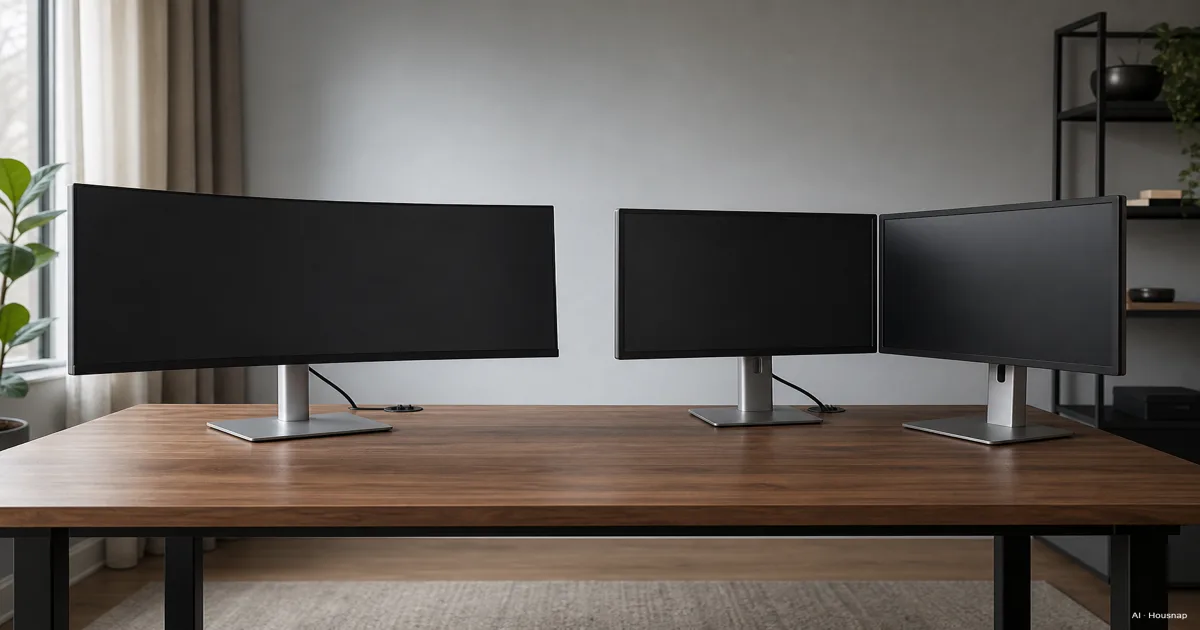
Start with the windows you actually need together
Write down one normal working session: a document beside reference material, an editing timeline, or a game with chat. Decide which content needs its own screen and which simply needs more room.
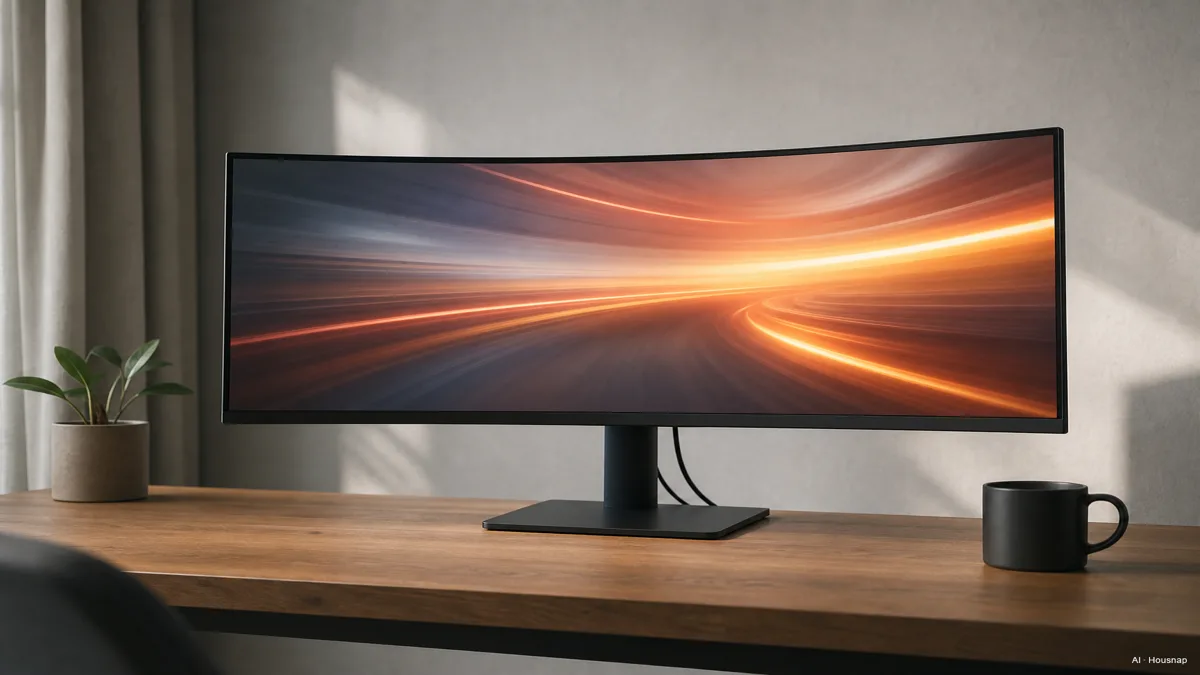
One wide workspace
An ultrawide makes sense when you want a timeline or supported game to stretch across a single panel. There is no join between two screens, but several apps can still share the space. ViewSonic compares these arrangements.
Before treating a second monitor as essential, try arranging your usual windows. On Windows, PowerToys FancyZones lets you create custom window zones. Sketch a wide central workspace with narrower reference windows if equal halves do not suit your work.
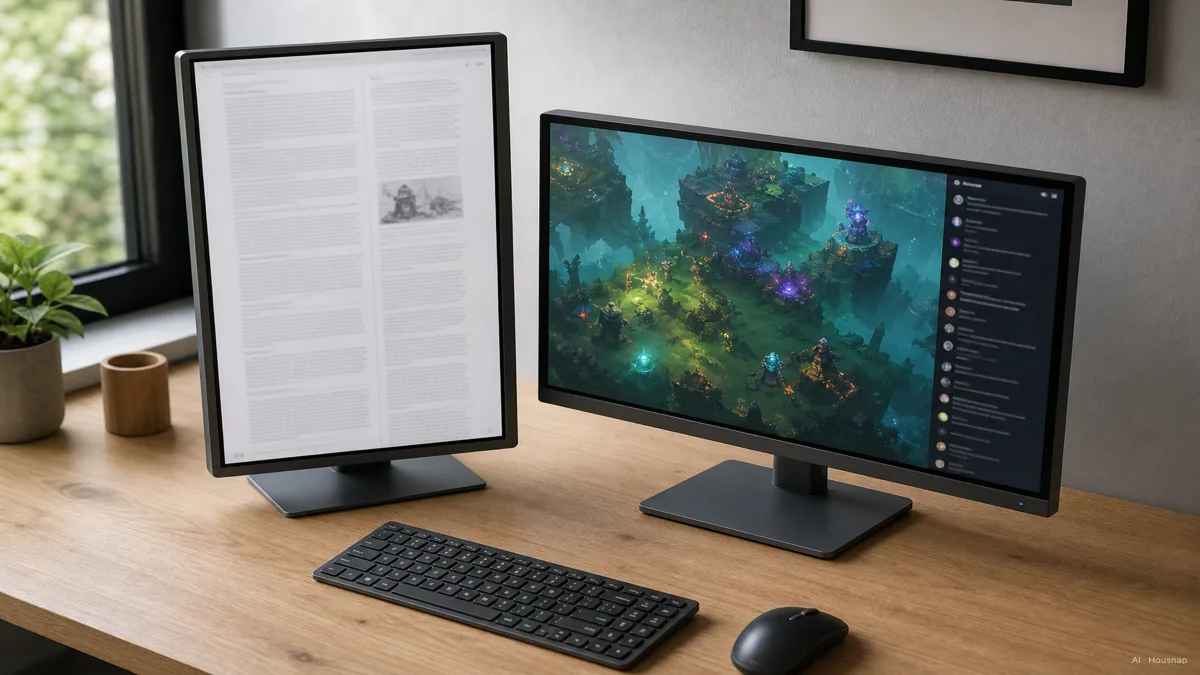
Two separately positioned screens
Choose dual monitors when your priority is a dedicated main screen plus a separate document, chat or reference screen. For portrait use, verify that the monitor and its mount permit rotation; Windows also needs the corresponding orientation setting. Microsoft explains display orientation.
For meetings, try your actual sharing workflow before deciding: can you share the required window while keeping your notes accessible? Make that a buying criterion rather than assuming screen count alone solves it.
Compare resolution, not diagonal inches alone
Use a specific comparison: one 34-inch 3440×1440 ultrawide versus two 27-inch 2560×1440 monitors. Dell documents the ultrawide resolution and standard QHD resolution. Multiplying those dimensions gives:
- One ultrawide: 4,953,600 pixels across one continuous surface.
- Two QHD screens: 7,372,800 pixels in total, split between two panels.
- The practical difference: the pair has about 49% more pixels. A 3440-pixel-wide screen does not replace two 2560-pixel-wide desktops at the same scale.
Check your preferred text size too. Pixel totals describe the available grid; they do not tell you whether your normal windows remain readable at the scaling you need.
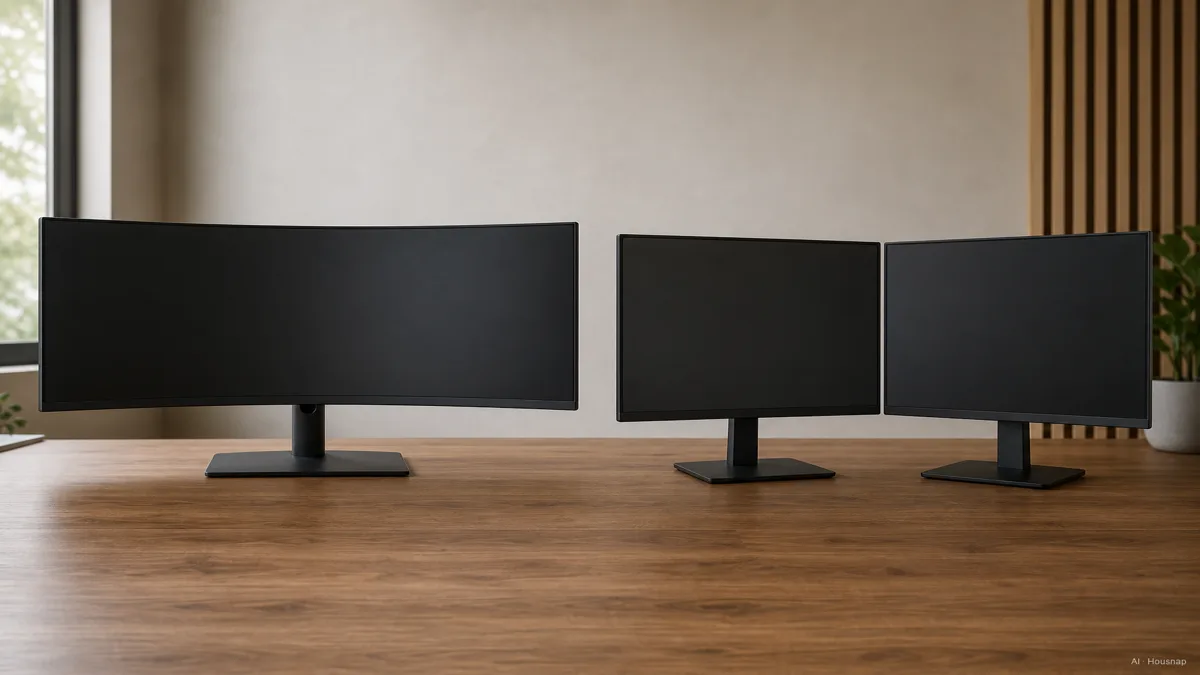
Treat a 5120×1440 super-ultrawide as a separate candidate. Its pixel total equals the QHD pair above, but it still needs its own desk and connection checks. ViewSonic distinguishes the wider formats.
Confirm that your computer can drive the arrangement
Write down each proposed screen’s resolution and refresh rate, meaning how often it updates per second. Check that combination against the computer, output ports, cables and any dock, rather than counting connectors alone. Dell explains the connection requirements.
For a Mac, the simultaneous display limit depends on the model and each screen’s resolution and refresh rate. Check the exact model through Apple’s display connection guide. If a laptop needs a hub or dock, work through the docking-station buying guide before ordering the monitors.
For gaming, check support for the intended ultrawide resolution and look for performance evidence for your game and graphics card. By calculation, 3440×1440 has about 34% more pixels than 2560×1440, or 139% more than 1920×1080. Those percentages are not frame-rate predictions; Dell notes that performance also depends on the game, settings and hardware. Ultrawide gaming considerations.
If you choose dual monitors, assess the resolution where the game will actually run. Do not substitute the combined desktop pixel count for the game’s rendering resolution.
Make the layout fit before adding an arm
Mark the candidates’ actual widths and stand footprints on your desk. Include room for the keyboard, mouse and the position where you normally sit. For dual screens, sketch both a centered main screen with a side display and a more symmetrical arrangement; choose the one that suits your main task.
Keep the supplied stands if they provide the position you need. Consider an arm when their footprint or adjustment range prevents that arrangement. Check the monitor’s mounting pattern, the arm’s supported weight and enough clearance for both panels. Leave cable slack for movement. Ergotron’s mounting guide covers these checks.
If mounting is the remaining obstacle, compare monitor arms and stands with your chosen screens’ specifications in hand.
Turn your choice into a complete shopping list
Compare the cost of a working arrangement, including any necessary cables, dock or mount. If you already own a usable screen, price the dual option as the additional equipment you actually need.
- Choose ultrawide if your essential task benefits from an uninterrupted surface and the resolution, connections and footprint all check out.
- Choose dual monitors if separate positioning or a dedicated secondary screen matters more. Decide whether you are buying a pair or adding one standard monitor to an existing screen.
- Pause the purchase if display support or physical fit is still unknown. Resolve that specific uncertainty before choosing a larger panel.
Once the arrangement is settled, use the gaming versus office monitor guide to decide what the main screen needs to prioritize. Keep that specification decision separate from the choice between one panel and two.
How this guide was built
Written by Chexlow’s AI editor using Dell and ViewSonic display guidance, Microsoft and Apple support documentation, and Ergotron mounting guidance. This comparison organizes those sources into a first-purchase decision and calculates pixel totals from stated resolutions; it does not report hands-on product testing.
Edited by the Chexlow team · Images are AI-generated illustrations