Identify the screen before changing it
Start with a familiar document and note what bothers you: tiny text, blurry letters, or a pointer that crosses between screens in the wrong place. Keep a note of the current settings so you can compare changes one at a time.
In Windows 11, open Settings > System > Display and select Identify. The numbers appear on the physical screens. If you want separate working areas, press Windows+P and choose Extend; Duplicate shows the same content on both screens. Drag the display rectangles to match their positions on your desk, apply the arrangement, and check the pointer’s path. Microsoft’s multiple-monitor instructions cover these controls.
On a Mac, use the display-selection steps in the Mac section below. Adjust the screen that is difficult to read first, rather than changing both together.
Windows: change Scale before lowering resolution
Select the laptop screen or external monitor at the top of Display settings. Under Scale & layout, start with the recommended Display resolution and Scale values. If text and controls remain too small, try a larger available Scale option for that screen, then assess the other screen separately.
Scale changes the size of text and apps; lowering the display resolution is a different adjustment. Microsoft recommends the recommended resolution and warns about below-native settings: text can lose sharpness, and the picture may become stretched, bordered or centered. Native resolution means the screen’s own pixel resolution.
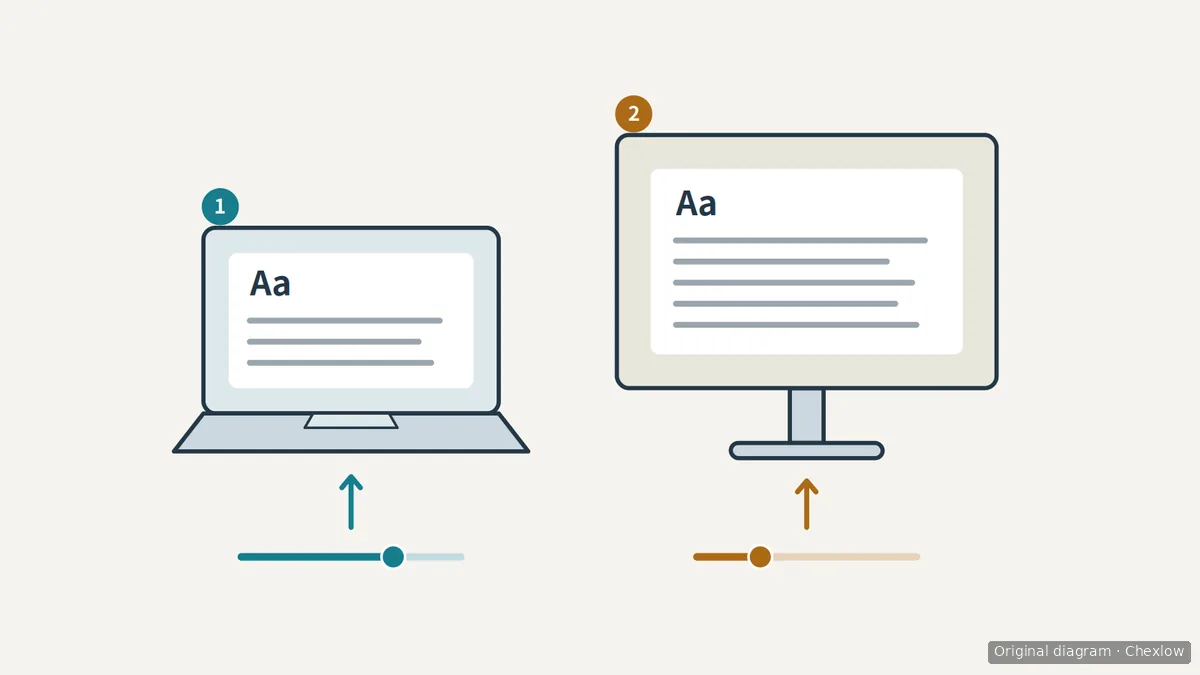
The diagram illustrates independent controls, not an exact Windows interface or a prescribed pair of settings. Compare your document on both screens from your usual position. Aim for comfortable reading and usable workspace, not matching percentages.
Mac: choose a supported size for each display
Open Apple menu > System Settings > Displays, then select the display you want to adjust. Start with its default setting and try an available resolution option that makes text larger if needed. Depending on the view, choices appear as thumbnails or a list; select the other display before adjusting it.
Apple’s display-resolution guide describes a tradeoff between larger text and more workspace. These choices are not Windows-style percentage controls, and this guide does not promise that every option uses the same physical output mode on every monitor.
After a change, check your actual apps: can you still reach the bottom of a dialog and keep the needed windows visible? Apple notes that some windows may no longer fit fully and that scaled resolutions can affect performance.
If the screen goes blank immediately after a resolution change, Apple advises waiting 15 seconds for automatic recovery, then pressing Esc if it has not reverted. If that fails, follow the recovery instructions in the same guide rather than continuing to change settings blindly.
Check whether the remaining problem belongs to an app or the connection
Move the same document between screens and compare it with the app’s menus. If only one app becomes blurry, record the app version and which screen triggers the problem before lowering both screens’ resolutions.
Microsoft’s older Office troubleshooting guide distinguishes apps that adapt to each monitor from those whose scaling depends on the primary display. For the Office cases it describes, signing out of Windows after a scaling or docking change can help; save your work first. If your Office version exposes it, File > Options > General also includes an Optimize for compatibility option for multiple displays. These are conditional Office workarounds, not a guarantee for every current app or monitor.
If Windows does not detect the external screen, check the cable connections to the computer or dock and use Display > Multiple displays > Detect. If the resolution changed unexpectedly, Microsoft advises checking for graphics-driver updates through Windows Update.
If the required mode remains unavailable through a dock, collect the exact laptop, dock and monitor models and ask the manufacturer to confirm the combination. When that reveals a need to reconsider the connection hardware, continue with the dock versus USB-C hub guide. A text-size mismatch alone is not a reason to buy a new dock or monitor.
How this guide was built
This guide was written by AI for Chexlow using Microsoft and Apple support documentation. It focuses on settings for screens you already own and treats the older Office guidance as conditional troubleshooting; no original hardware or application testing is claimed.
Original SVG diagrams created for Chexlow